Concepts · pipeline
How Axelium works
Axelium turns a review protocol into a transparent evidence workflow: find candidate studies, screen them, obtain full text, check eligibility against the full text, extract evidence, run the right synthesis, review the outputs, and generate a report.
NOTE · User-visible workflow, not implementation detail
Review settings and earlier results
The limited review-settings preview shows your selected methods and versions, explains why each is what it is, and retains every save. Changes are compared with the settings recorded for each stage: changing a certainty method alone does not make screening results out of date. Earlier runs remain available after a re-run unless you start the search over, and results without recorded settings are shown as unknown rather than assumed current. Where a stage is answered by hand rather than run, the notice tells you which records to revisit instead of offering a button that does nothing. Review settings covers versions, history and copying in full.
Search, import, and study linking
Add records manually, import RIS/BibTeX libraries, generate a search strategy from your protocol, or use citation chasing to find related papers. Axelium deduplicates records and links trial registrations, publications, and companion papers where possible.
- Search results enter the review as candidates, usually pending screening.
- Optional source coverage can broaden recall beyond the primary clinical indexes.
- Known-relevant papers can improve recall as pearls or citation-chasing seeds.
- Source coverage is retained for transparent PRISMA reporting.
A search strategy has two layers: a plan — the population, exposure or intervention, comparator, outcomes, publication date range (whole years, or exact dates when you are reproducing a search run on a specific day), extra terms and exclusions — and the queries built from it for each source. Four actions on the Search page work on these differently, and two of them replace the plan. The queries change only when you save an edit, or when the AI builds them:
- Refine queries — the AI builds the queries again from your existing plan, starting from the queries you have, any open findings from a search review, what the last search found and your known papers. Your edits to the plan are kept. This is the one to use while iterating. Write what should change in the box beside it, such as a term to drop or a kind of study to bring in, and the builder starts from the saved queries and follows your note.
- Rebuild plan and queries from scratch (AI) — drafts a completely new plan from your research question, then builds new queries. Anything you set by hand is replaced.
- Rebuild plan from the question (no AI) — replaces the plan the same way, without the drafting assistant. It builds no queries: the saved ones stay, out of date until you refine them.
- Edit structured plan — opens the plan as editable fields. Saving keeps the saved queries, marked out of date until you refine them, or edit and save them.
The two replacing actions ask you to confirm, and are disabled once the strategy is locked — so locking a strategy you have tuned by hand is the surest way to keep it. Once the review's protocol is locked, the strategy is frozen with it whether or not it was locked itself: building, populating and editing the plan say so and change nothing until the protocol is unlocked.
When the Configure assistant reviews the search, its findings are also listed on the Search page, under the plan and above the queries. Each one shows the problem, the part of the search it concerns, the evidence and the suggested fix. Dismiss a finding you disagree with; Undo puts it back, and the page shows who dismissed it and when. Refine queries starts from the findings still open. After a refine they are listed as considered: the build saw them, which does not mean it fixed them, and the next search review checks again. A newer review replaces an earlier one. Dismissing needs the same role as changing the search.
The plan's date range, extra terms and exclusions are added to the queries after the builder writes them. Extra terms are one requirement: a record must mention at least one of them. An exclusion that is part of one of the plan's own population or intervention terms is left out, because it would remove the studies the search is for, and the plan says so. Stage, grade and class terms narrow the condition rather than standing in for it, so they are not added as alternatives to it. If the saved PubMed query then finds far fewer records than the builder's own query did, the build finishes with a warning that gives both numbers.
If the query builder runs out of time mid-build — during a temporary slowdown, for example — it keeps the work it has already done and finishes from there rather than starting over. When it has to fall back to a simpler automatic strategy instead, the Search page says so prominently, and a fallback never overwrites queries the full builder previously saved: rebuild once things recover and nothing is lost.
Each search adds up to a set number of records per database. Before a search runs, the Search page counts each database's records and says when one has more than a search adds, giving every database's total against what one search adds — for example, PubMed has 7,864 records and one search adds the first 2,000, by relevance — so you can run anyway, raise the PubMed record limit and run, or cancel and narrow the query first. When one search would leave out more than nine in ten of a database's records — the first 2,000 of 200,000, say — the search is held back: a search that broad is rarely on topic, so the page suggests narrowing the query or building the search strategy, and runs it only once you tick that you understand most records will not be added. The PubMed record limit is 2,000 unless you choose 1,500 or 3,000, the most one search adds; it sits beside Free full text only and is kept with the review, and a larger limit takes longer. ClinicalTrials.gov adds 500 records a search. When a search stops at a limit, Load next batch adds the next records with the same queries, after a reload too. The run history and Found studies say how much of each database a search added, for example "Incomplete: 2,000 of 7,864 PubMed records added. 5,864 remain; the next batch adds 2,000 of them.", so a partial set of results never passes for a complete one. Once the queries have changed since that search, Load next batch is not offered: run the search again.
A review holds at most 5,000 records, from all its searches, next batches, database searches, citation chasing and reference imports together; deleted records do not count. When a search would take a review past 5,000, the check before it runs says how much room is left, and the search adds new records up to the limit, PubMed's most relevant first, then ClinicalTrials.gov's, then the other databases', and says how many it left out. Records already in the review take up no room. Once a review holds 5,000 records, searching and importing add no more. Records linked in automatically, such as a trial's results publication, still are.
A search runs the saved query for each database exactly as the Search page shows it, and records it with the results. Checking the queries, running a search and loading the next batch never change them; the next batch continues the same search with the same queries. The search query card shows what a search sends to PubMed and ClinicalTrials.gov and where each query comes from: the saved queries, or, for a database with nothing saved, terms made from the search plan, which are not saved until you choose Save as the search queries. To change a query, edit it in the search strategy and choose Save; Discard puts back the saved queries. Until you save, the strategy says Unsaved changes, Test queries checks what you typed without saving it, and leaving the page asks first. If the queries changed meanwhile — in another tab, or by a rebuild — the save is refused and you are asked to reload. Run search with unsaved changes asks whether to save them first or run the saved queries as they are. A search runs a query only when it was built from a search plan, edited and saved by you, or made from the search plan for a database with nothing saved. A review with no search plan and no saved queries shows a query drawn from the review question in the search strategy, as a starting point marked as one that does not run: Run search stays off and offers Build the search strategy and Edit and save the query. Once you edit the query, Run search asks to save it first; saving it unchanged is refused, and so is a search of it, automated runs included. If the queries change between the page showing them and the search running, the search does not run: the page shows the queries as they are now and says what changed.
After a search saves its records, each ClinicalTrials.gov record whose registry entry lists its results paper or later analyses is linked to those publications, so screening and extraction treat a trial and its papers as one study. Under Run search, the search query card says how it is going: how many registry records it has checked so far, and once it has finished, how many links it added and when. A record whose entry lists no results paper is checked and left as it is; when none of a search's registry records lists one, the card says that none needed a new link. When some records could not be linked, the card names their ClinicalTrials.gov numbers; when linking stopped or could not be started, it says so. Link again checks every registry record of the review once more and keeps the links already made. A review whose registry records have no linking on record is offered Link registry records. Linking adds records to the review, so it is not offered once screening is locked. Start the search over clears what the card says about linking from before it, with the records it hides; Undo brings both back.
Changing the search plan, including whether outcomes are part of the search, keeps the saved queries and marks them out of date, and so does switching the review's framework once the queries record the framework they were built for. A search still runs them as they are, with a warning, and they cannot be locked until you refine them, or edit and save them.
On Configure, Regenerate plan replaces the search plan with one drafted from your saved review question, after asking. It builds no queries: the search is built, refined and locked on the Search page, and Configure's search section links there when the saved queries are out of date. The Configure assistant works the same way: it can read, count and review the search, and save a plan you agree to, and it points you to the Search page to change the queries.

Starting the search over
Each search adds its new records to the ones already found. To begin again from nothing, for example once the queries have changed and the earlier results are no longer wanted, choose Start the search over in the Recent search activity card on the Search page. It hides every record in the review, imported ones included, and sets its searches aside, so the next search starts from nothing. A record the next search finds again comes back as a new record, to be screened again. The review keeps its settings, its search plan and queries, its strategy builds, its team, its sign-offs and its history. Screening decisions, full texts and extracted data on the hidden records are kept, but they no longer count anywhere: not in Found studies, screening, the counts on the sidebar and the Overview, PRISMA or the report.
Before anything changes, you are asked to confirm and told what will disappear: how many records, how many of them are already screened, how many have a full text and how many have extracted data. Once the search is started over, the message that says so offers Undo for 10 seconds, and there is no other way back. Undo is refused once a search has run since, or when some of the hidden records are in the review again, for example through an import, and for the same reasons as starting over, below.
The control is shown while the review has records or searches. It needs the same role as changing the search, and the read-only demo does not offer it. It is refused while the review's protocol is locked (unlock the protocol on Configure first; unlocking is recorded as an amendment), while the search strategy is locked (unlock it first), while a search is still running, while an automated run is in progress, and while a screening, extraction or risk of bias batch you started is running on the review's records. On a living review it also switches living updates off, so that an update cannot bring the hidden records back as new ones: switch them back on in the living review settings on Configure once you have searched again and locked the queries.
Restart from scratch, offered once a review has run automatically (on Configure and on a finished run's progress banner), is the permanent version: it deletes the results of every stage, the searches included, and runs the automated workflow again from a fresh search. It cannot be undone. Start the search over changes only the search, can be undone for 10 seconds, leaves the next search to you, and works on a review worked one stage at a time.
Screening and eligibility
Screening applies the protocol to every candidate record. AI suggestions can provide a starting point, but reviewer decisions, exclusion reasons, dual-review modes, and conflict adjudication are the source of truth for formal reviews.
- Included records continue to full text, full-text screening and extraction.
- Excluded records keep their reason for PRISMA reporting.
- Unsure records need reviewer attention or adjudication; they also go on to full text, so the paper itself can settle them.
Two kinds of record are set aside whatever the protocol says, because neither can contribute participants of its own: study protocols and methods-only papers, which describe a study without reporting its results; and secondary literature — reviews, meta-analyses, editorials, guidelines and economic evaluations — which re-reports studies already eligible in their own right. Including the latter would count the same trial more than once. Subgroup and follow-up reports of a named trial are unaffected.
For comparison-based questions, screening also records whether each study analyses the comparison the review asks about — reporting outcomes separately for the compared groups, or estimating an effect of the contrast — or merely mentions it, for example as a baseline characteristic or a subgroup label. Reviews whose comparison vocabulary is common in off-topic abstracts can opt to require the analysed comparison for inclusion: mention-only studies are then excluded, and studies where the text does not reveal which are held for reviewer attention.
Working through the records
Title and abstract screening and full-text screening work the same way. The records sit in a list beside the one you have open, sorted into tabs by decision. The open record's own tabs show its abstract, comments and history, or at full text its criteria and evidence, the paper, the abstract and comments. The bar under the record names the record it will act on, and a decision moves you on to the next. On a record you have already decided, the bar shows that decision pressed, and pressing it again changes nothing; the other two are still a press away. A record the AI decided and no one has confirmed shows nothing pressed, since the decision that agrees with the AI confirms it. Tick several records, or select them with the keyboard, to decide them together.
In the abstract, the passage the AI relied on for each criterion is marked on its own. Each criterion has a number, shown on its chip and where its passage starts, and each passage is shaded by the criterion's verdict: met, not met, or not established. Select a chip to outline that criterion's passages and bring them into view; select it again to clear them. A chip that cannot be selected has no passage in the abstract. At full text the Abstract tab marks the same passages, and choosing a quote in the paper outlines its criterion there too. Only passages found word for word in the abstract are marked, so records screened before 10 June 2026 show their verdicts without highlights.
Including or excluding a record against the AI's suggestion, and Unsure on a record that was already included or excluded, ask why before anything is saved; the dialog says what the AI suggested, or whose decision you are taking back, and your reason is kept in the record's history. Ctrl Enter (⌘ Enter on a Mac) saves it, and Esc cancels and leaves the record as it was. In Focus, a note you have written starts the reason. Confirming the AI, deciding a record the AI has not screened, and Unsure on an undecided record save at once. A bulk decision asks once, only when some of the selection goes against the AI or takes a decision back, and keeps the reason with each of those records. Send to full text is not a decision against the AI and asks nothing. When a decision cannot be saved, the reason shows under the bar you used, with the next step where there is one.
Focus shows one record at a time at full width, with the AI's assessment beside it, the next few records and an optional note that is saved with your decision. At full text, Focus also lists the screening questions, and in dual review the AI's assessment stays hidden until you have decided, unless the review is set to show it first. Switch between Split and Focus above the list; the page remembers your choice. On a phone the list and the record take turns, and Start focus review works through the queue one record at a time.

Keyboard shortcuts
Press ? on either screening page for the full list. Shortcuts are ignored while you type in a field or when a menu is open.
- Y, N, U: include, exclude or unsure (at full text: confirm include, exclude with a reason, needs discussion). A decision that needs a reason opens its dialog with the cursor in the field.
- J and K: the next and previous record. In the list, the arrow keys do the same, and Home and End go to the first and last on the page.
- X (in the list, Space): select the open record; Esc clears the selection.
- /: search the records (title and abstract screening).
- F: switch between Split and Focus; ] and [: the record's next and previous tab; C: the screening criteria.
Full text, supplements, and manual upload
Full-text retrieval collects PDFs, supplements, and other source documents needed for extraction or qualitative coding. Open-access retrieval is attempted first; when a document remains unavailable, users can upload it manually or capture it with the browser companion if they have lawful access.
- Supplements can include appendices, spreadsheets, and Word documents.
- Text from PubMed Central is used only when the article's identifiers match the study, so a paper that cites a study is never saved as its full text.
- When a paper is free to read on PubMed Central but its publisher does not allow automatic downloads, it is listed for you to open and add.
- A study without a DOI is looked up by its PubMed ID. A DOI found for it is added to the study, unless another study in the review already has that DOI.
- When a free copy exists but its website does not allow automatic downloads, the browser companion fetches it from your browser, or the paper is listed for you to open when the website asks for a person.
- A file the study already has is not added again, whether it is uploaded once more or arrives in a bulk upload. Your own upload is always kept, and the same file uploaded for two studies is kept for each.
- Parsed documents become available for source-backed extraction.
- Blocked or missing documents stay visible so reviewers can resolve them.
Full-text screening
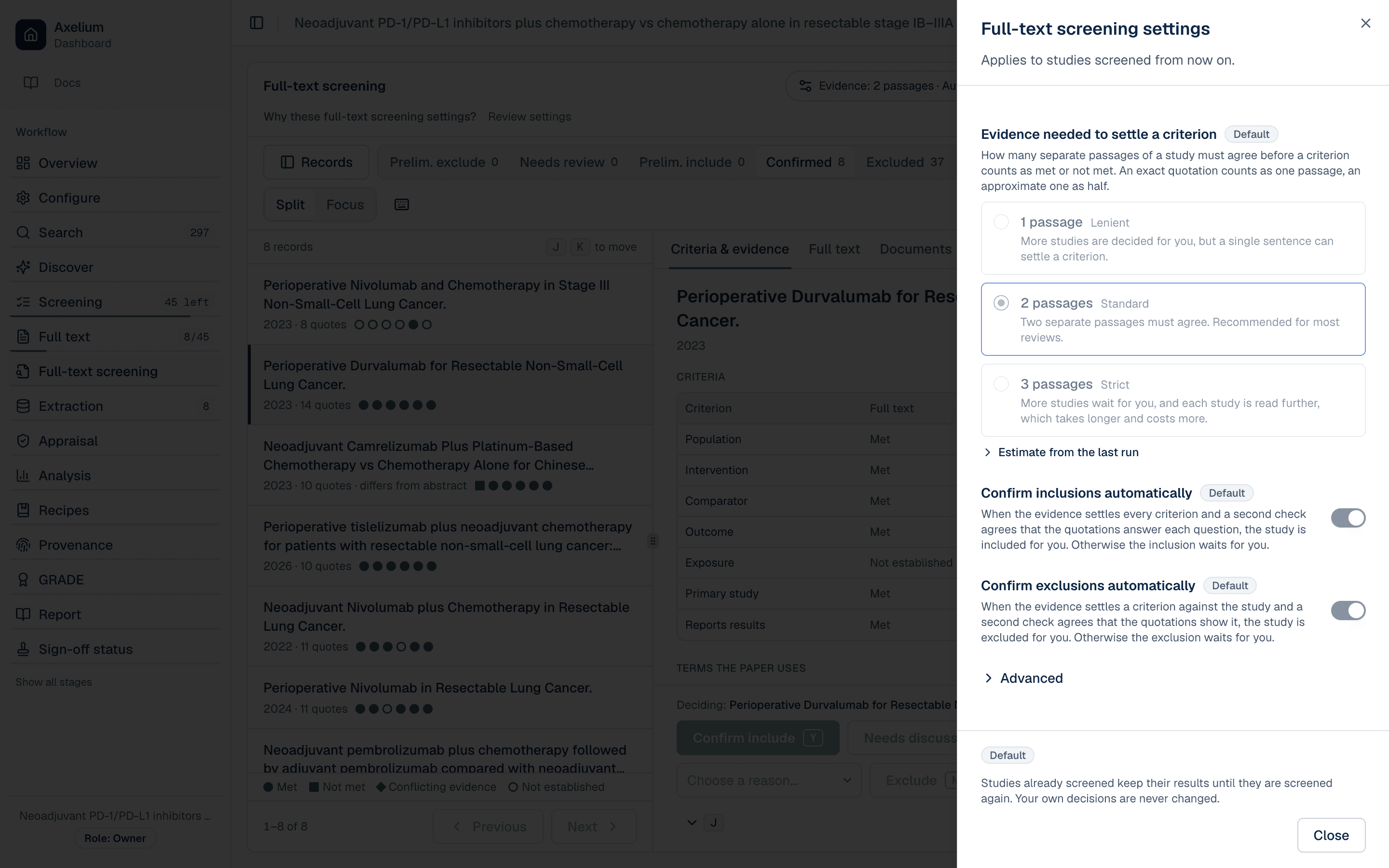
Full-text screening checks eligibility against the paper itself before anything is extracted. Every study the title and abstract screen left included or unsure, and whose full text could be read, is assessed by the AI reviewer. It reads the paper section by section against each eligibility criterion of the review's question framework (PICO, PEO, or the qualitative frameworks), plus two publication checks: whether the study collected its own data rather than reviewing or re-analysing others', and whether it reports results. For each criterion it quotes the passages it relies on, and every quote is located in the paper. A criterion is settled only when enough independent passages support it — two by default, or one or three if you change it in the page's settings; evidence on both sides marks it conflicting, and a criterion the paper does not settle goes to a reviewer. A heading, a table label, or a passage that only relates to a criterion without answering it (one that shares a word with it, or only shows who was studied) is kept for you to see but never counted. Absence of evidence never excludes a study; a study's own statement that it had no comparison group is evidence, not absence. A ClinicalTrials.gov record is judged on its trial's eligibility: each entry of the record counts as its own passage, a record that registers a single group does not meet a required comparator, and whether results are posted on it is shown but does not decide.
A review can choose which of its criteria must be met at full text, including questions it keeps outside its framework, such as a comparison or a study design; a criterion newly required there never excludes a study on its own, so such a study waits for you. When the review requires the study itself to compare the groups, the comparison counts only where the paper states a result for them, and the abstract screen can pass on a study whose comparison looks incidental instead of excluding it, so that its full text decides (see Full-text screening settings).
- Preliminary include — every criterion and check is met.
- Preliminary exclude — a criterion or check is not met, with a suggested reason.
- Needs review — the evidence does not settle the decision either way.
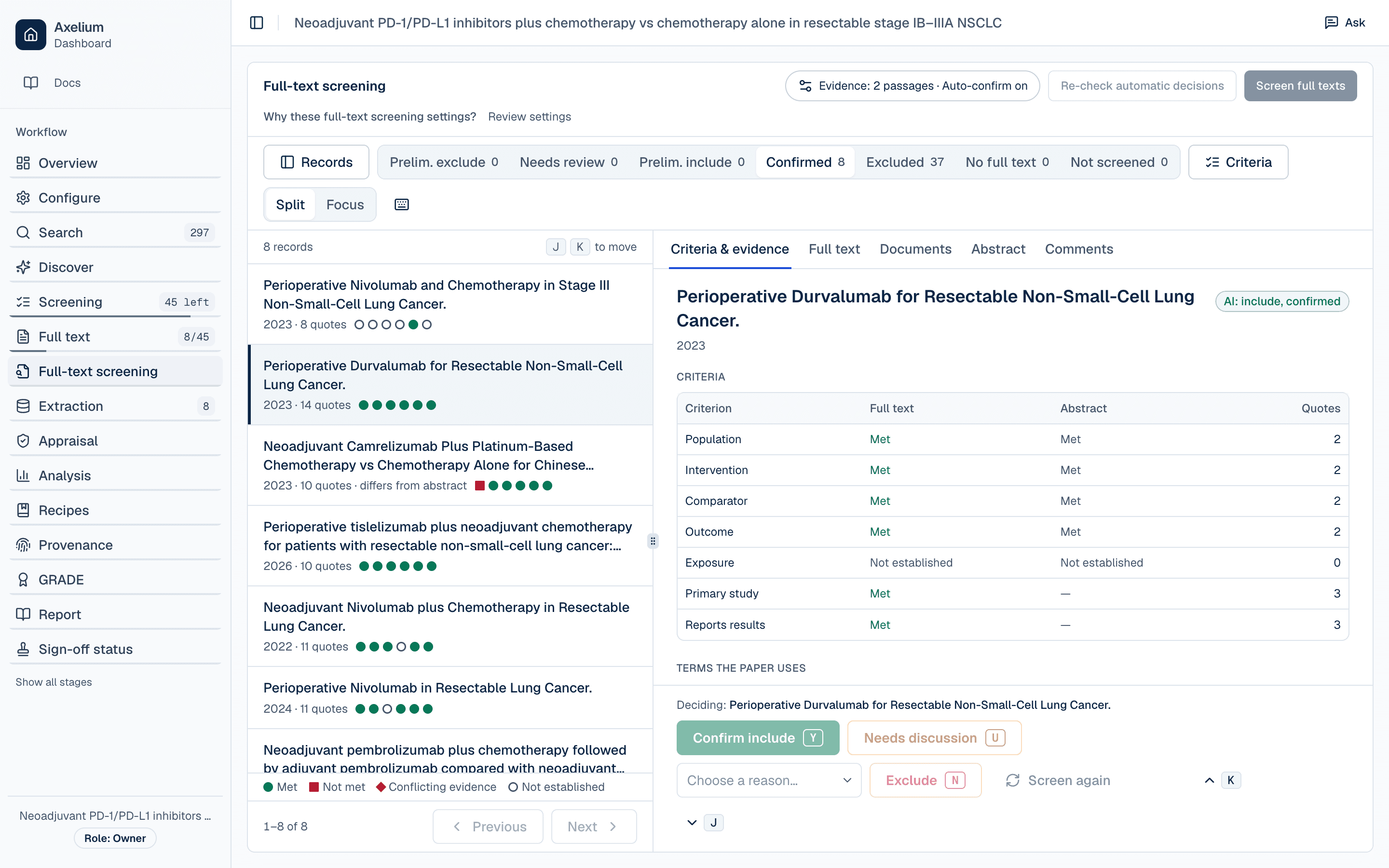
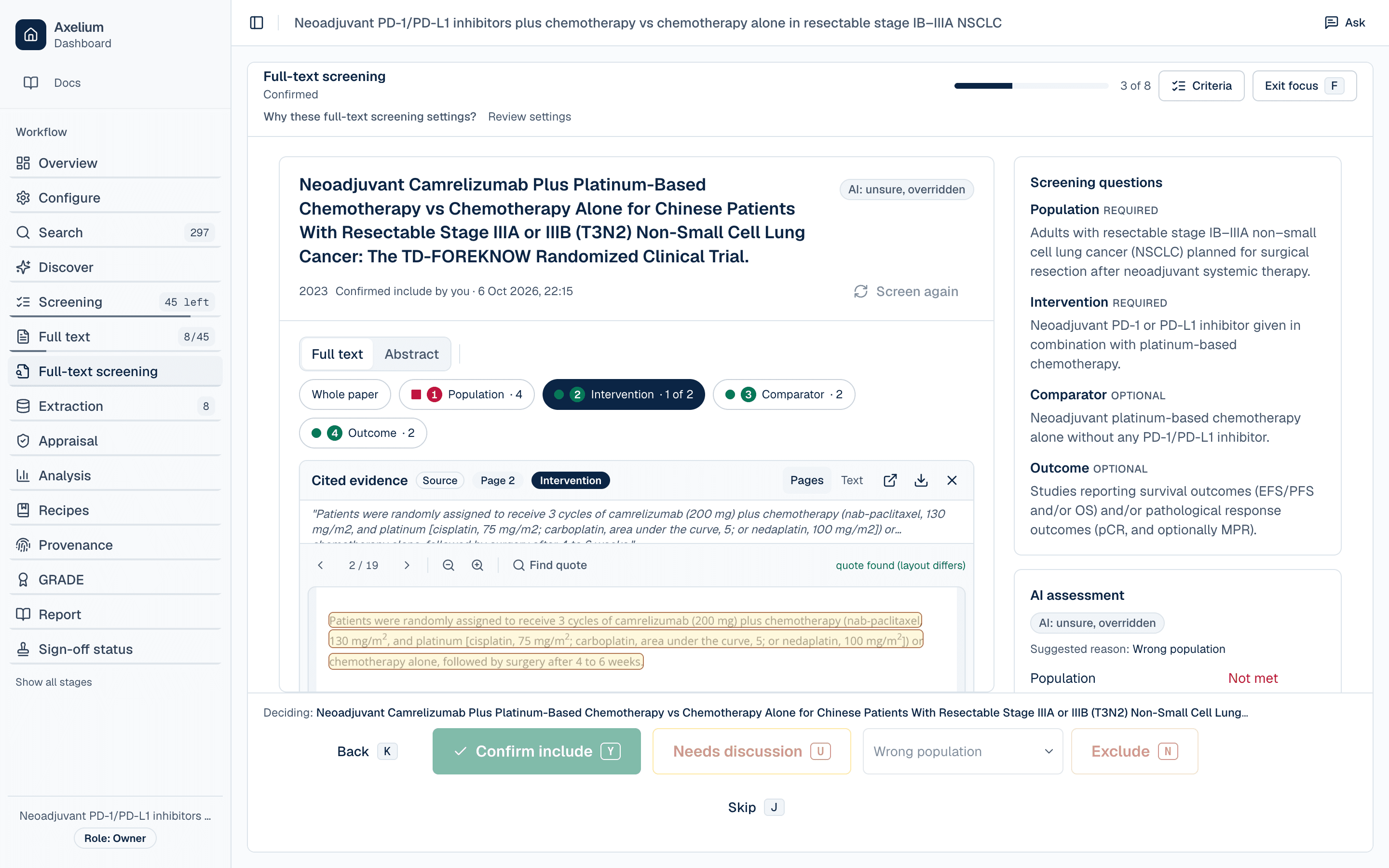
Open it from Screening → Full-text screening; the sidebar step shows how many studies await a decision. Tabs sort studies into Preliminary exclude, Needs review, Preliminary include, Confirmed, Excluded, Full text unavailable, and Not screened yet, and each row shows one mark per criterion — met, not met, conflicting, or not established, each with its own shape. The open study's Criteria & evidence tab shows each criterion's full-text verdict beside the abstract screen's, with disagreements highlighted, and the supporting quotes. Choosing a quote opens the paper in the Full text tab at that place; from there you can move between the whole paper and each criterion's passages. The paper loads only when you open it; its buttons turn the pages, and Text shows the paper's words in place of its pages. A quote that could not be found in the paper is struck through, and a quote that was found but does not count is shown muted with the reason; neither is included in the quote counts. From the decision bar you can Confirm include, Exclude (with a reason, prefilled from the AI's suggestion), mark it Needs discussion, or Screen again; several studies can be confirmed or excluded at once. Excluded together, each keeps the AI's own suggested reason unless you choose one reason for all of them; a study without a suggestion needs a reason from you. Including or excluding against the AI's proposal, and Needs discussion on a study the AI proposed or that was already decided, ask why as at title and abstract; an exclusion's dialog starts with the exclusion reason you chose, which you can send as it stands or add to, and a bulk Confirm include or Exclude asks once for the selection. In dual review only the vote that agrees with the other reviewer against a proposal the AI made before the review moved to two reviewers asks why. In Focus the paper fills the page, with the questions and the AI's assessment beside it. In dual review the AI's verdicts, suggested reason and quotes stay hidden until you have decided, unless the review is set to show them first. The pipeline screens full texts automatically after retrieval, and Screen full texts starts it by hand.
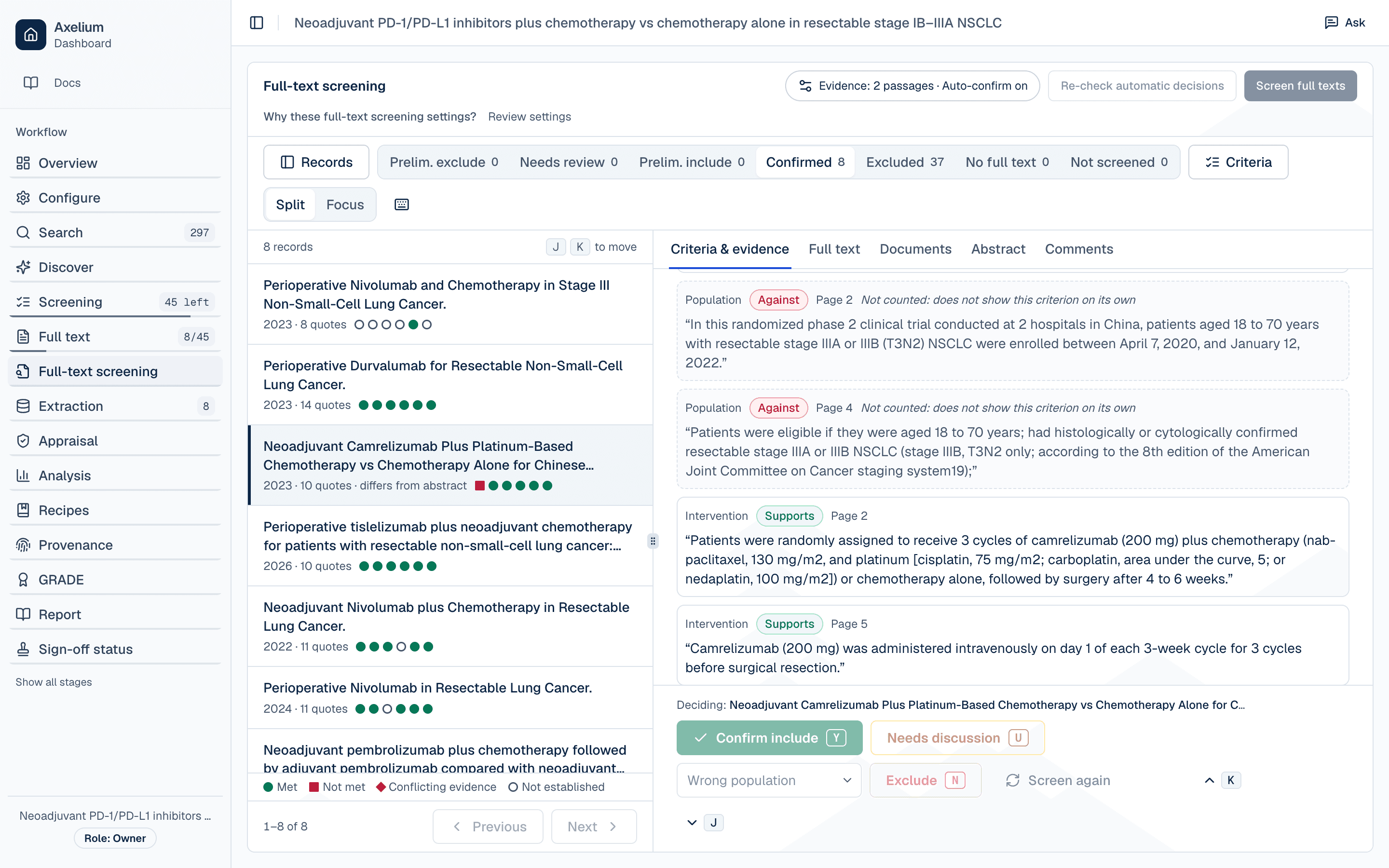
In the Full text tab every quote found in the paper is marked where it is, numbered like its criterion's chip and shaded by what it shows: met, not met, or muted when it was found but does not count. Select a criterion's chip to go to its first quote and select it again to go to the next; clicking a marked quote chooses it, and Whole paper keeps every quote marked with none chosen. On a PDF's pages the chosen quote is found and highlighted on its page, and every other quote is outlined: a dashed outline is approximate and marks the paragraph a quote is in, with the numbers of the criteria quoted there. Once a reviewer has opened a quote and it was found on its page, it is outlined where it is from then on, for everyone on the review. Click an outline to choose its quote.
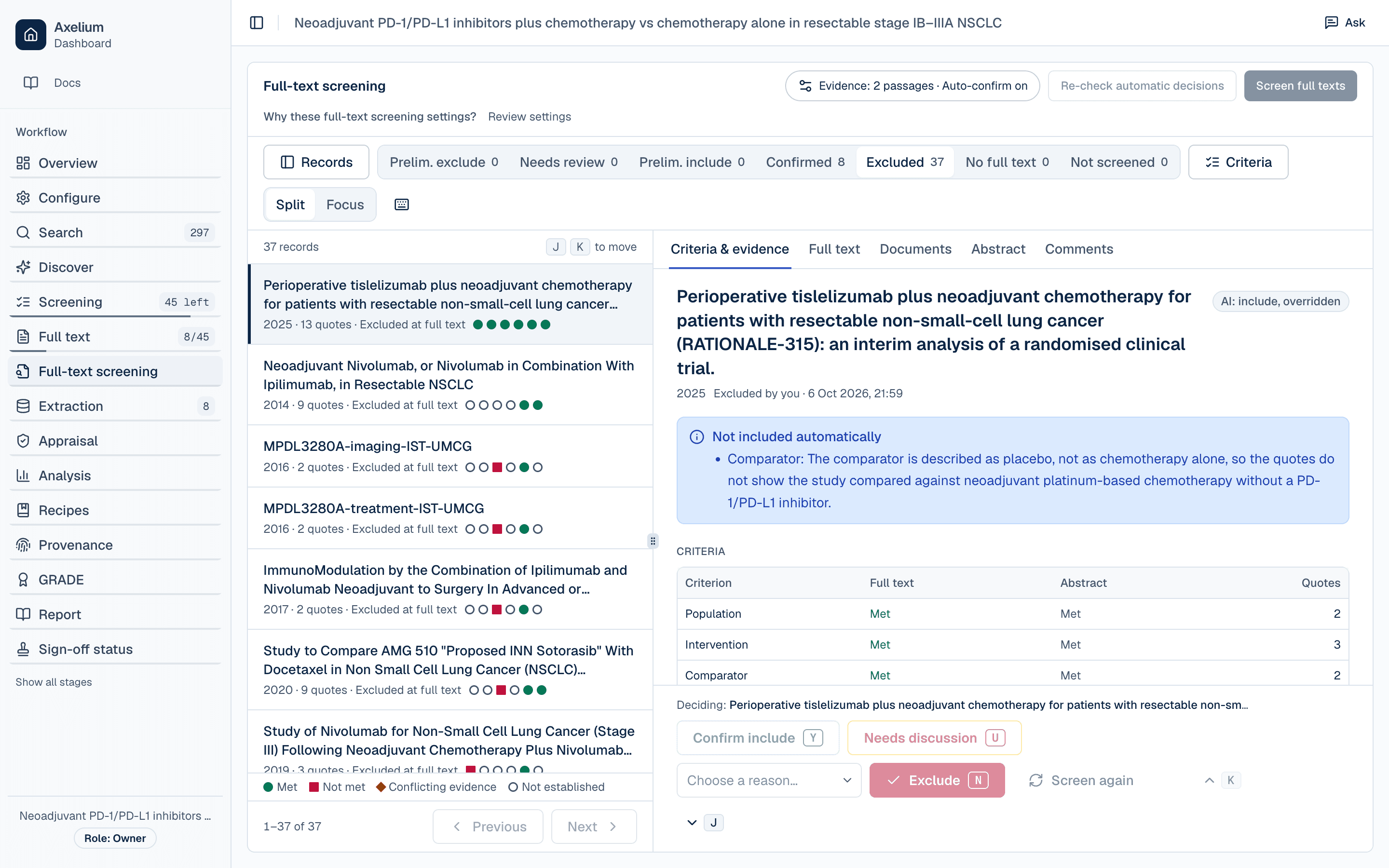
In single-reviewer review, decisions the evidence settles clearly are confirmed automatically by default, once a separate check agrees that the quotes answer each deciding criterion's question; when it does not, the decision waits for you with the reason, and everything else waits for you too. Turn it off in the full-text screening settings (on that page, or from Full-text decisions on Configure) to confirm every decision yourself. Studies whose full text could not be obtained are marked Full text unavailable and are never excluded for that reason. A study at preliminary exclude, needs review, or excluded is not extracted. Exclusions at full text are counted with their reasons in the PRISMA flow and the RevMan export.
On a study waiting for you, Criteria & evidence also lists, under Your answers, each criterion the AI reviewer left unsettled, with its best quotes, Met and Not met, and an optional note. Your answers are yours: they settle those criteria for you alone, no other reviewer sees them, and they do not change the AI reviewer's assessment. Once a required criterion is not met, or every required criterion is met, the decision that follows is one key away: Y (or Confirm include) to include, or N (or Exclude) to exclude with the reason that criterion records already chosen when there is one. A decision against the AI's proposal still asks why, and the dialog opens with your answers in your words. Once the study is included or excluded — by you, or in single review by anyone — the answers stay as they are; after Needs discussion they can still be changed. Someone who can only view the review, a demo account and a locked review see them turned off, with the reason why.
The Documents tab lists the study's documents: the one the AI reviewer read for the decision shown, the one in use (the one screening, extraction and risk of bias read), where each came from, and whether it is shown to be the study's own paper — Verified (it prints the study's DOI, PubMed ID or title), Not verified, May be another study's paper, or Confirmed by a person — with a note on how its text is read where that matters. Use this document makes another of them the study's paper, the one screening, extraction and risk of bias read; a supplement, or a document whose text is not ready, cannot be chosen. A different document changes no decision: when the AI reviewer read another document than the one in use, Screen again has it read the one in use, since a new screening run does not read a study it has already screened again, and a study a person has decided is not read again. In dual review, which document the AI reviewer read stays hidden until you decide, like its assessment.
Changing the review's criteria or settings does not change decisions already confirmed automatically. Re-check automatic decisions, at the top of the page, applies the current rules again to every full-text decision that was confirmed automatically and that no one has decided, and, when the review sends studies whose comparison looks incidental on to full text, to the studies excluded at title and abstract for that reason alone. It reads the papers again, about as much as screening them again, so it asks before it starts, and one runs at a time. Nothing changes by itself: when it finishes you are told what it found, a banner tells everyone on the review how many studies the current rules would change, and Review changes (or Re-check report, beside the action, which also shows a re-check that found nothing or did not finish) lists them under Would now be excluded, Would now be included, Would now need review and Would now go on to full text, each with what it is now, what it would be and why. Accept one study, or a whole group, with a reason kept in each study's history (the study's reasons are offered, and you can edit them): a full-text study becomes your decision — Included, Excluded or Needs discussion — and a study excluded at title and abstract goes back to title and abstract screening, which needs permission to settle screening disagreements. Dismiss leaves studies as they are. A study someone decided since is left as it is, a newer re-check replaces the report, and the report says it may be out of date when the review's settings were saved after the re-check started. In dual review no full-text decision is confirmed automatically, so there is none to re-check, and a review switched to dual shows none of the AI's full-text findings.
Learn moreFull-text screening methodExtraction, coding, and reviewer checks
Quantitative reviews extract structured values such as events, totals, means, standard deviations, time-to-event estimates, or prevalence data. Qualitative reviews code passages, appraise studies, and develop themes. In both cases, outputs should stay connected to source evidence and reviewer decisions.
- Low-confidence or conflicting values should be reviewed before synthesis.
- By default, only validated values go into the analysis. Validating a whole study, or every study, takes only complete values that no check flags, and lists them — with what it leaves out and why — before anything changes. A value a check flags is taken once the check is answered or the value corrected; a value whose quote a reviewer could not find in the paper waits until the quote is settled — marked Right, replaced or re-extracted; a value whose effect looks implausible waits until its values are corrected, or is validated from the form if they are right; and a value still missing fields is validated by hand, one line at a time. In the Verify table, Validate row follows the same rule, and so does validating a selection: tick the values you want, or tick “not yet validated” to take every one shown, and a bar at the foot of the table says how many can be validated and which are held back and why, then validates them after a confirmation that names the number. The form's Validate validates the value in hand, at once. Withdrawing a validation — one value, an outcome or a whole study — asks why, and the reason is kept in each value's history. A value that holds only the paper's own estimate with its confidence interval counts as complete when nothing flags it, and that estimate can be edited in the form like any other value. In a network meta-analysis a value holds one set of numbers per treatment group, and it counts as complete when at least two groups each have what the outcome needs: the number of participants with the number of events, or with a mean and its standard deviation, standard error or confidence interval — the same numbers network setup needs to use the study.
- Each value keeps a history: when it was extracted and what the checks said; every change made to it, with the numbers before and after, whether in Extraction, when a disagreement between two reviewers is resolved, by the Analysis assistant when you ask it to, or by an automatic correction; who validated it or withdrew the validation, including a second reviewer who agreed or entered different values; and reviewers' answers about its quotes. Each step of approval leads with what was done (Validated, Withdrawn, Proposed) and who did it, with their role in the review and the reason they gave. The AI's extraction reads as an AI proposal, and an automatic step is shown as such, with why it happened, never as a person's act. A value marked validated whose validator was not recorded says so. The newest four steps show first; the earlier ones are a click away. Decisions made in the list of outcomes the checks flagged are recorded too, under the reviewer who made them: Reject as the value's exclusion from the analysis, with the reason you gave (Reject asks one for each outcome), and Re-extract with what the new extraction changed. Keep leaves the value as it was, so it adds nothing. A decision that cannot be recorded, for example because extraction was locked meanwhile, is named with the reason, and the others are still recorded. Saving a study changes only the values you edited; the others keep their validation.
- A value excluded from the analysis stays excluded when it is edited or extracted again. To bring it back, select Undo rejection beside the outcome's Rejected badge in Form; it asks why, then the values return to Needs you, unvalidated, ready to check and validate again, and their history records who brought them back and why. This works the same way in a network meta-analysis, unless a saved network analysis holds the outcome: then the undo is refused, with a message saying so.
- Each confidence interval is read at the level the paper reports — 90%, 95%, 97.5% or 99% — and at 95% only when the paper names none. Standard errors and standard deviations calculated from an interval use the multiplier for its level, on the log scale for ratio measures, and a value whose quote names a different level from the one recorded is flagged.
- Every extracted value keeps its citation: the quoted sentence, the page when the document has pages, and — for stored PDFs where the sentence has been located — an evidence excerpt, a picture of the source page cropped around the value with the cited text tinted. Opening a citation shows the document at that spot; a reviewer can redraw the location by hand, and the hand-drawn one always wins. A reviewer's answer to whether a quote is in the paper belongs to that sentence: a new extraction that cites another sentence asks again.
- Extraction shows the study list, the study's sources with each quote pinned where it was found, and a Verify table: one line per outcome and timepoint, each marked Needs you, Ready, Validated or Empty. A line's card shows its state — Needs you, Ready, Validated or Rejected — with who validated it and when, Validate or Withdraw at its foot, then what blocks the value first: the checks on it with their answers, then the quoted sentence, the answers given before and the value's history. When the automatic check has already found the quote in the paper, the question about it steps back behind the checks. Form shows the full form, with the same pins beside each field.
- A check that flags a value offers what settles it — confirm the value as it is, record the measure the paper reports, set the interval's level, clear the value, or re-extract the outcome with a note saying what to do differently. A value quoted from the paper with nothing stored for it offers Use the quoted value, which fills the empty fields with the numbers the sentence gives and is saved with the study like any edit; any other check is settled by editing or re-extracting the value. A confirmation is kept with who gave it and when, and the check opens again if the value changes; an edit is saved with the study. Reopening an answered check asks why. Right and Wrong record whether a quote is in the paper: Wrong asks why before it marks the quote as not in the paper, and so does withdrawing an answer about a quote; the reason is kept in the value's history. One answer covers every field the sentence is quoted for, and the quote marks move as soon as you answer. Selecting words in a source's text (for a PDF, its Text view) while a value is open makes them that value's quote, marked Confirmed by a reviewer, and the value's history records it under your name.
- Keys: j and k move between studies, ] and [ between outcomes in the form, } and { between lines; y and n answer the open quote; v validates the open value, and Shift + Enter validates it and moves on — to the next line in Verify, to the next value to validate in the form; e opens it in the form, m switches between Verify and Form, and ? lists them all.
- A review that codes its evidence instead of extracting numbers opens Extraction on a card with its coded passages, included studies and draft themes; where Coding is available, its next step after full text is Coding.
- Qualitative themes and CERQual ratings are proposals until a reviewer finalises them.
- Risk-of-bias and certainty judgements remain reviewer-owned.

Synthesis and statistical analysis
The Analysis tab supports pairwise meta-analysis, common sensitivity checks, publication-bias views, qualitative synthesis outputs, and early-access advanced workflows such as network meta-analysis and ecology/evolution synthesis. The app surfaces plots, tables, and diagnostics; reviewers interpret them against the protocol and the quality of the underlying evidence. A network meta-analysis is set up in three steps on its own tab — check the data, confirm the treatment groups, run the analysis for one outcome at a time — and each result stays a draft until the outcome is locked.
When a method falls outside the curated toolset, you can also run your own — bespoke models, uncurated packages, or your lab's methodology — against a frozen copy of the same dataset, with your approval on every run. Bigger jobs can be handed to the Analysis Workbench, which works through them in the background and reports live progress. These custom outputs are clearly labeled “User-defined” and are kept separate from the curated pipeline: they never feed certainty ratings or generated reports. See custom analysis and the Workbench for details.
Ask about your data
Each analysis has an assistant that answers questions about the review's own data: which endpoints already have extracted values and which are still missing, what has been extracted for a particular study and what is awaiting review, where the review stands overall, how the research question and endpoints are set up, and why a record was included or excluded at screening — the recorded decision, its confidence, and the abstract passages quoted against each screening question — including which studies were excluded at full text and why. Open it with the “Ask” button in the analysis header (or ⌘/ on a Mac, Ctrl+/ elsewhere); it stays open while you move between the pages of an analysis, and an answer keeps streaming while you do.
It is read-only. It never changes the protocol, runs an analysis, or edits a value — the configuration assistant and the Analysis tab keep those jobs. It can quote saved pooled estimates, confidence intervals, study counts and GRADE ratings, including in a read-only review. Those figures describe the saved analysis and the data it used; extraction-readiness counts describe the data now. Results appear next to the answer as a card or table you can expand. On the extraction page it knows which study and endpoint you are looking at, and a row in an expanded table can take you straight to that study or endpoint; on the setup page it can open an endpoint's definition for you. Its starter suggestions come from the review itself: the endpoints with the biggest gaps, values awaiting review, or a summary of the question. The assistant is in early access, so it may not be available in every workspace yet.
In the public demo the assistant answers a limited number of questions on each visit, and shows how many are left. A demo conversation is not saved: it stays in your browser tab until you close it. Once the questions are used up, you can request access to use the assistant on your own review.
Review automation and approval checkpoints
Automated review can flag missing data, stale appraisals, inconsistent units, or protocol-level questions. Data-level repairs are either confirmed by a follow-up verification check or handed to you for review — and always disclosed — while protocol-level changes pause for explicit approval. Where search drafting is enabled, the same principle applies at the very start: the workflow can draft a search strategy for you, but it pauses for your review and approval before any search runs — locking the strategy is the approval that lets the run continue.
For runs that finish with unresolved signals, an automated deep audit can additionally read the extracted data next to its source quotes and flag issues the standard checks cannot express — for example an outcome typed inconsistently with how the paper reports it. Every deep-audit finding arrives on the review page with its supporting evidence, clearly labelled as machine-suggested. Narrow, well-evidenced data fixes — reversed study groups, unit conversions, a value corrected against the quotation it came from, a targeted re-read of one study — may be repaired automatically: each automatic repair is re-checked in a follow-up verification pass and listed with the check it passed, values a reviewer has validated or edited are never overwritten, and a repair that cannot be confirmed is handed to you instead. Anything protocol-level runs only with your approval; approved re-runs update the results and are disclosed in the report like any other protocol deviation.
Restart from scratch clears every result of a review and runs the automated workflow again from a fresh search. It is offered once a review has run automatically, beside Continue manually on Configure and on a finished run's progress banner. It needs a review the workflow can run on its own: until then it is shown switched off, and it says what to finish first, such as generating search queries and locking the search strategy. A review worked one stage at a time does not show it. If a review is not ready when you confirm, nothing is deleted.
WARN · Nothing protocol-level changes silently
Living reviews
Living reviews monitor for new studies and evidence changes after a review is established. New evidence returns through screening, full-text retrieval, extraction, analysis, and reviewer approval. Importing a new study's data from the review inbox validates only the values nothing flags, as validating a whole study does; a flagged or incomplete value, or one whose quote a reviewer could not find in the paper, waits for a reviewer in Extraction. When any of the studies picked in the inbox goes against the AI's screening, or was not screened by it yet — rejecting a study the AI included, or accepting one it was unsure about — Accept, Reject and Import data ask for one reason for the batch, kept in each of those studies' history; a batch that agrees with the AI saves at once. One-off NMA preparation is supported separately from recurring living NMA refresh.
Each update runs the review's saved search queries again over the dates since the previous update, with a day of overlap so no study falls between two updates, and reads every page of results for those dates, up to 2,000 studies per database. The search appears on the Search page under Recent search activity as an automatic update search, with the dates it covered and how many studies it found and how many were new. If a database could not be searched, or matched more studies than that, the entry is marked incomplete and names the database, and the next update searches those dates again. If a search keeps matching more than one update takes in, narrow it. Update searches are not held to a review's 5,000-record limit, and the studies they add do not count toward it, so a living review keeps taking in new evidence.
Reports and Evidence board
The Evidence board lets reviewers pin plots, tables, notes, and decisions that should support a report. Generated drafts use selected evidence as a starting point; they should be edited, checked, and approved before sharing.
In a team review, lead reviewers and admins edit saved reports, restore earlier versions, and delete reports; other members read them. Once the manuscript is locked, saved reports can no longer be changed. Whoever pinned an item to the Evidence board can relabel or remove it; lead reviewers and admins can manage every pin.
Read-only visitors open the newest saved draft automatically. Saved reports show their creation date so earlier drafts with the same title can be distinguished. PRISMA summaries count deduplicated records at screening and reports at full text, identifying any additional reports of an already-screened study. A source-coverage summary appears in Methods only when requested.

Teams and collaboration
Team reviews add roles, invitations, assignments, comments, notifications, dual-review modes, conflict adjudication, and milestone sign-off. Use collaboration features when a review needs independent judgements, workload splitting, or accountable approval. Every review, team or personal, has a Sign-off status page after Report that shows who approved what and what still needs a person.
Learn moreCollaboration guideData provenance and audit
Axelium is designed so reviewers can trace results back to studies, source documents, extracted values, reviewer decisions, and report evidence. This does not remove the need for manual verification; it makes verification easier to perform and explain.
Where a quoted value has already been located in the source text by an earlier pass, the lineage view can reuse that result instead of searching the document again. Where it cannot — because the earlier result was inconclusive, or the source has been updated since — it checks the document again.
Living-review history keeps each update's own results and certainty ratings. If an older update predates data changes, its freshness warning remains even when a newer analysis is available on Analysis. A missing historical rating does not mean that the current analysis has no GRADE rating.

FAQ
Can I trust AI outputs without review? No. Suggestions, extracted values, appraisals, and report drafts should be checked against the protocol and source evidence before they become part of a formal review.
Where should implementation details live? Public docs describe reviewer-visible behavior. Internal engineering docs should cover architecture, safeguards, and operational mechanics.
Edge cases and limitations
Complex PDFs, sparse evidence networks, unusual measures, incompatible study designs, and ambiguous qualitative material still require methodological judgement. Use the validation guide before relying on outputs in a manuscript, regulatory package, HTA dossier, or guideline process.
Learn moreValidation & limitations