Step-by-step · ~14 min
Quickstart: from research question to report
Use this guide to set up a review, add studies, retrieve full text, screen records, extract outcomes, run an analysis, and generate a first report. It is intentionally practical: enough to get moving, with links to the deeper methodology pages when you need them.
Step 1 of 6 · ~2 min
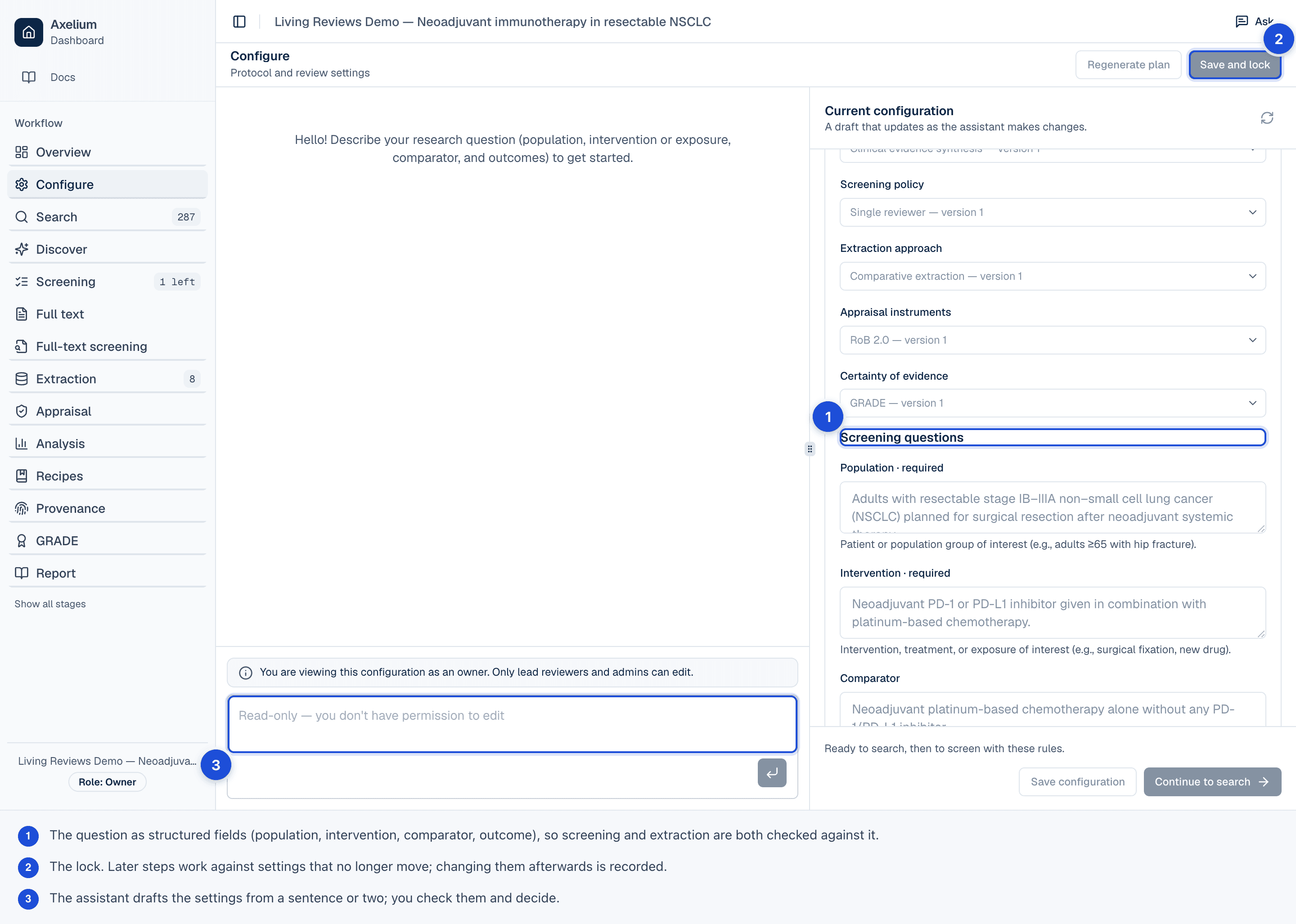
Configure your protocol
If your workspace has the review-settings preview, choose Blank, Template, Earlier review or Settings file when creating a project. Then check the versioned methods and screening questions in Configure. Export settings to reuse review intent, or use Save history to compare a save with the one before it and restore earlier saves. Review settings explains what they cover and what happens to earlier results when they change.
Start with the question and eligibility criteria that every downstream step should respect. Pick a framework, define the population and outcomes, and add inclusion or exclusion rules before launching search.
- Use PICO for intervention reviews and PEO for exposure, prevalence, and many qualitative questions.
- Use PECO, PICOC, or PO for ecology and evolution reviews when those frameworks fit the question better.
- Describe qualitative or mixed-methods questions in plain language so the review can use the right screening and synthesis path.
- Lock major protocol decisions before formal screening whenever your review needs audit-ready reproducibility.
- Reproducing a published review? Attach its PDF and ask the assistant what it used — its outcomes, eligibility criteria, search dates, appraisal checklist or analysis model. It answers with page references and changes nothing until you confirm.
Step 2 of 6 · ~2 min
Add studies and publications
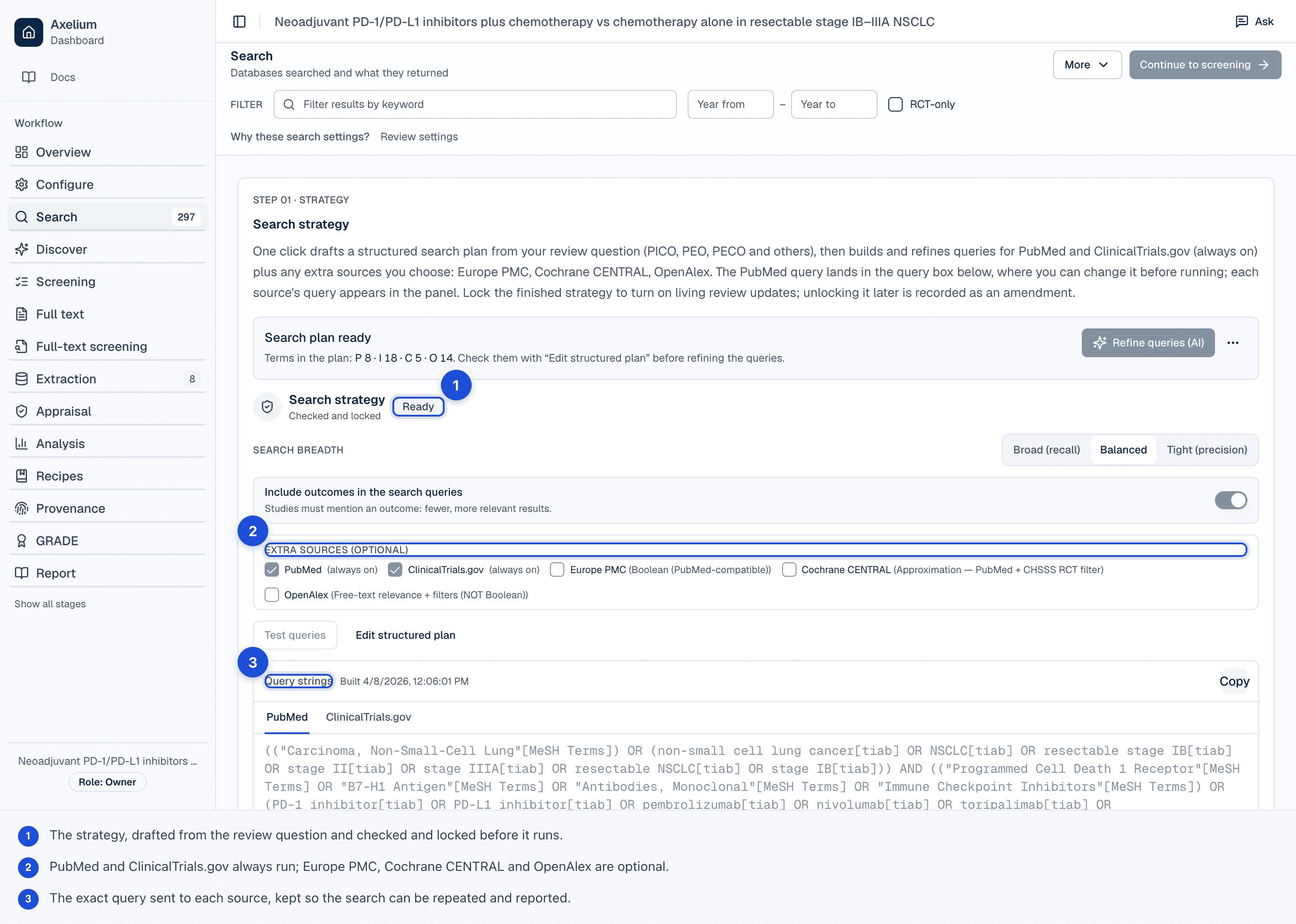
Add records by identifier, import a reference-manager file, or let the search assistant draft and test a strategy from your protocol. Known relevant papers can be used as pearls to improve recall.
- Add individual trials or publications by NCT ID, PMID, DOI, or keyword search.
- Import RIS or BibTeX from EndNote, Zotero, Mendeley, PubMed, Embase, Web of Science, Ovid, or similar tools.
- Use the search assistant for PubMed and ClinicalTrials.gov, with optional extra source coverage where available.
- The Search page shows the exact query each database will receive. Build the search strategy, or edit a query in the search strategy and save it: a query drawn from your review question is only a starting point, and a search does not run it until you do. Before a search runs, the page says when a database has more records than one search adds, and you can raise PubMed's record limit; a search that would leave out most of a database's records runs only once you confirm it.
- Planning to run the automated workflow? Its launcher can bring you here, start the strategy draft for you, and take you back to launch once the strategy is locked.
- Use Discover for citation chasing once you have seed papers that should anchor the evidence base.
- Expect new records to enter screening first; inclusion is decided by screening, not by search alone.
Step 3 of 6 · ~2 min
Retrieve full text and supplements
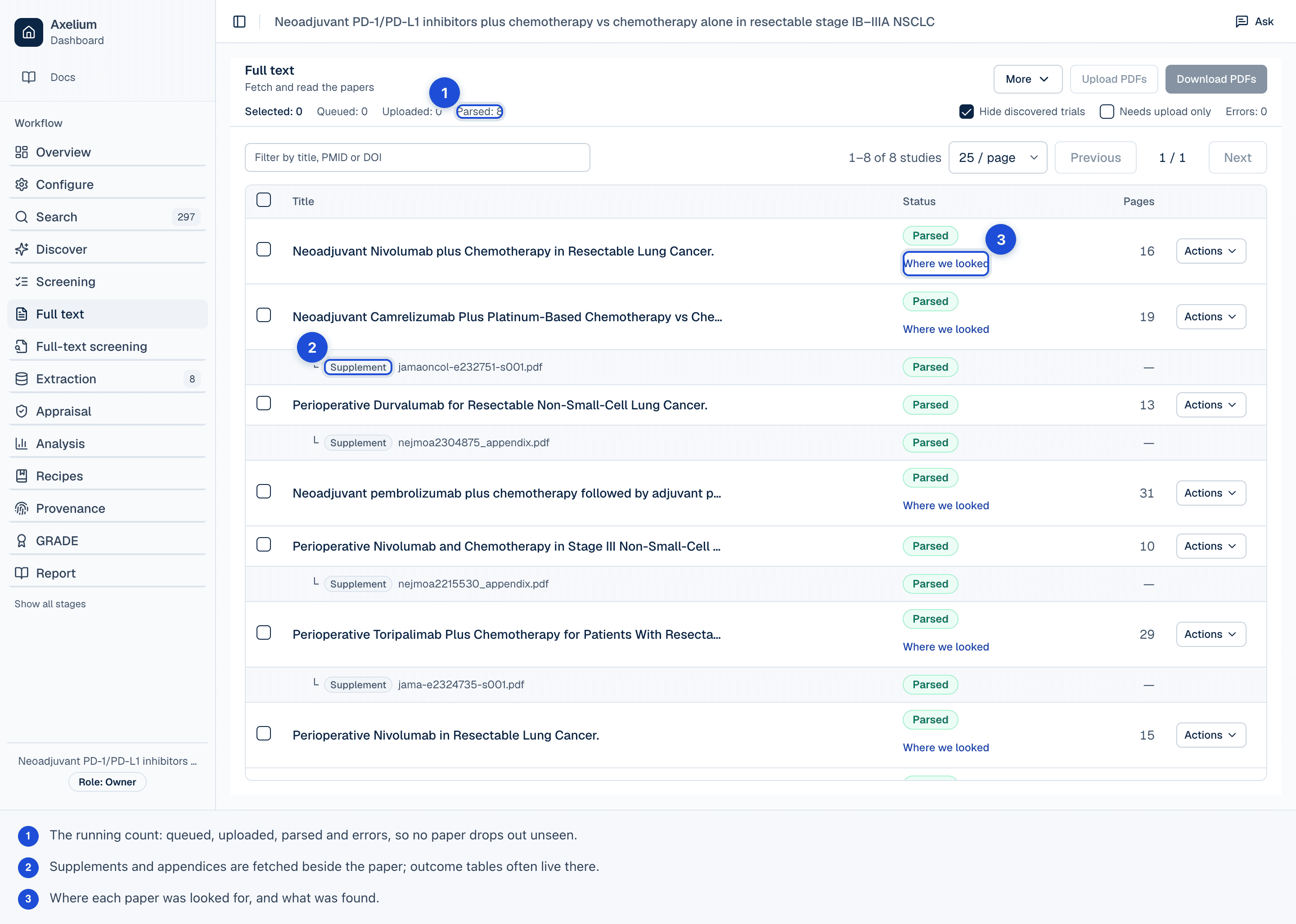
Move to the Full text page to collect PDFs, supplements, and other source documents. Axelium tries open-access retrieval first; when a document is unavailable, upload your own copy or use the browser companion for articles you can legally access.
- Parsed documents are marked Parsed and become available for extraction or qualitative coding.
- Supplements such as appendices, spreadsheets, and Word documents can be attached to the same study.
- Publisher-blocked or paywalled records remain visible so you can upload the missing document manually.
- Use bulk upload when a folder of PDFs needs to be matched back to several studies.
Step 4 of 6 · ~2 min
Screen records and resolve uncertainty
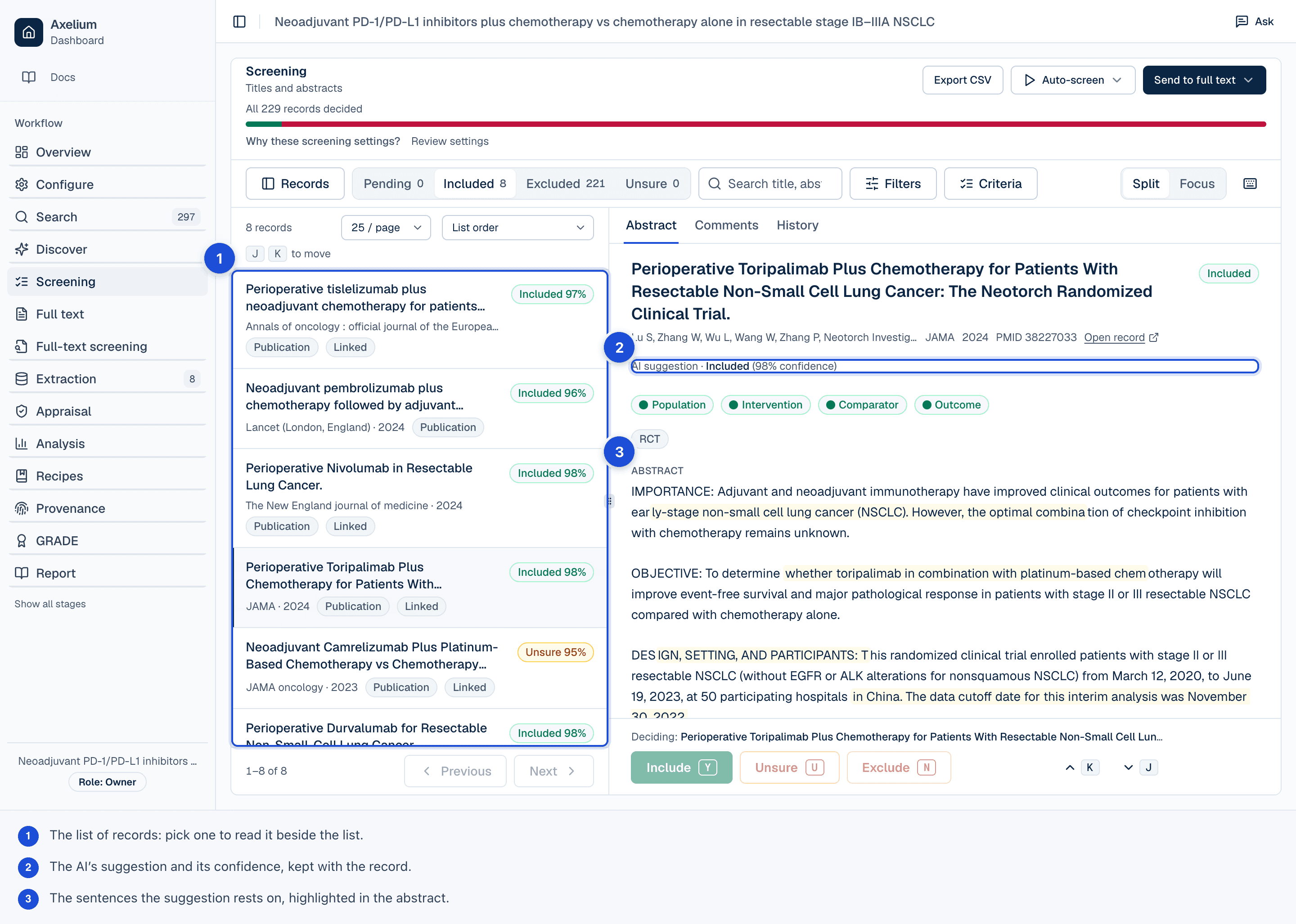
Screening applies your eligibility criteria to titles, abstracts, and full text. AI suggestions can speed up triage, but formal inclusion and exclusion decisions should be reviewed according to your protocol.
- Work down the list: open a record, decide in the bar under it, and the next opens. Y, N and U decide from the keyboard, J and K move, and ? lists the rest.
- Switch to Focus to read one record at a time at full width, with an optional note kept with your decision.
- Tick several records to decide them together.
- Capture exclusion reasons as you screen so PRISMA reporting is easier later.
- Use custom screening guidance when repeated edge cases appear.
- Use dual-review or two-human modes when your review requires independent decisions.
- Resolve conflicts before treating the included set as final.
Step 5 of 6 · ~3 min
Extract data and run analysis
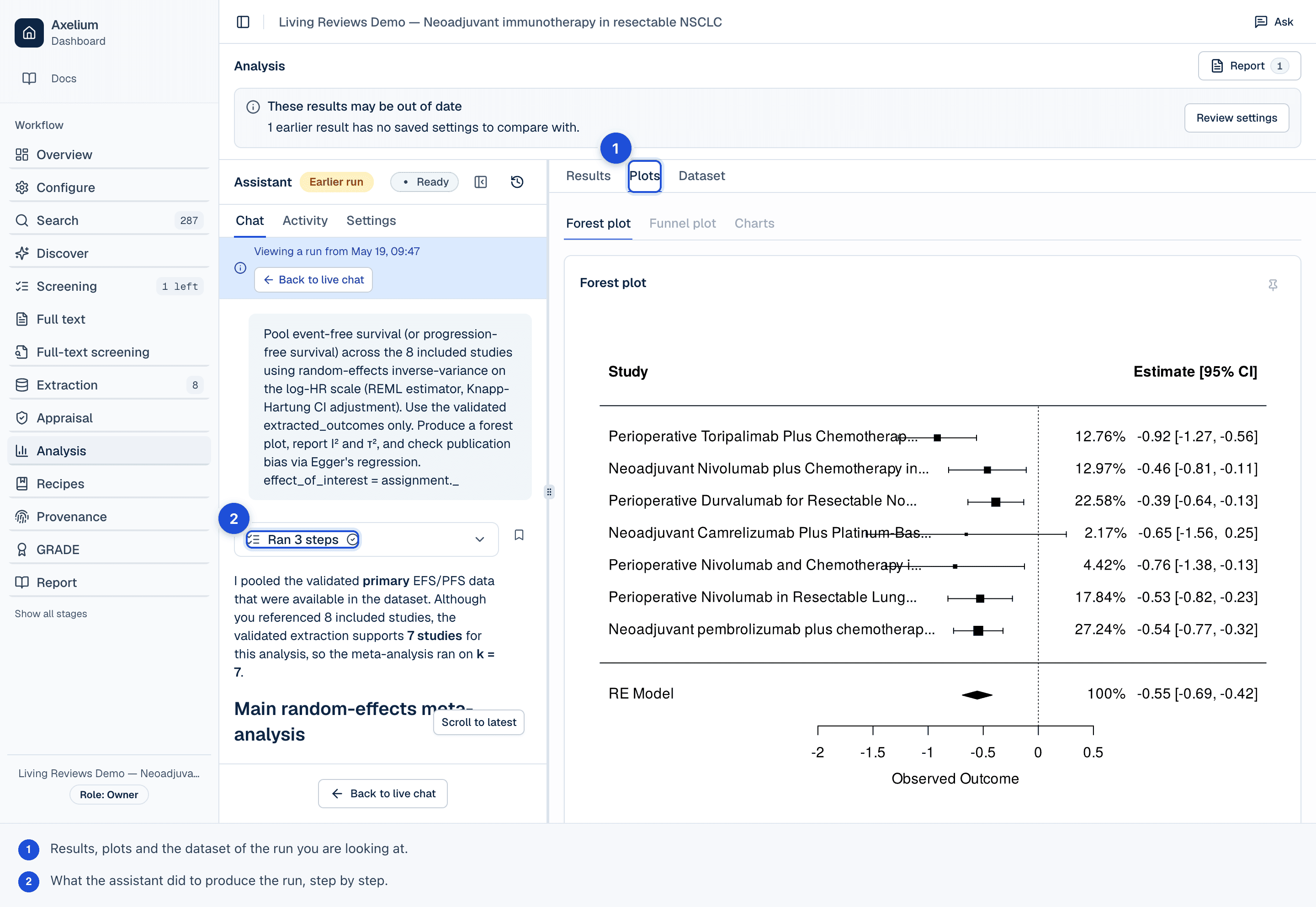
Once studies have eligible documents, extract outcome data and inspect the evidence trail. Then run the appropriate synthesis for the review: pairwise meta-analysis, qualitative synthesis, network meta-analysis, or ecology/evolution models when enabled and appropriate.
- Work down the Verify table's Needs you lines first: open each to see its quote, what flags it and what settles it.
- Review low-confidence values before pooling them.
- Check that the effect measure matches the endpoint and protocol.
- Use the analysis results, plots, and diagnostics as decision support, not a substitute for methodological review.
- For NMA and ecology/evolution reviews, read the current-scope notes before interpreting results.

Step 6 of 6 · ~3 min
Pin evidence and generate a report
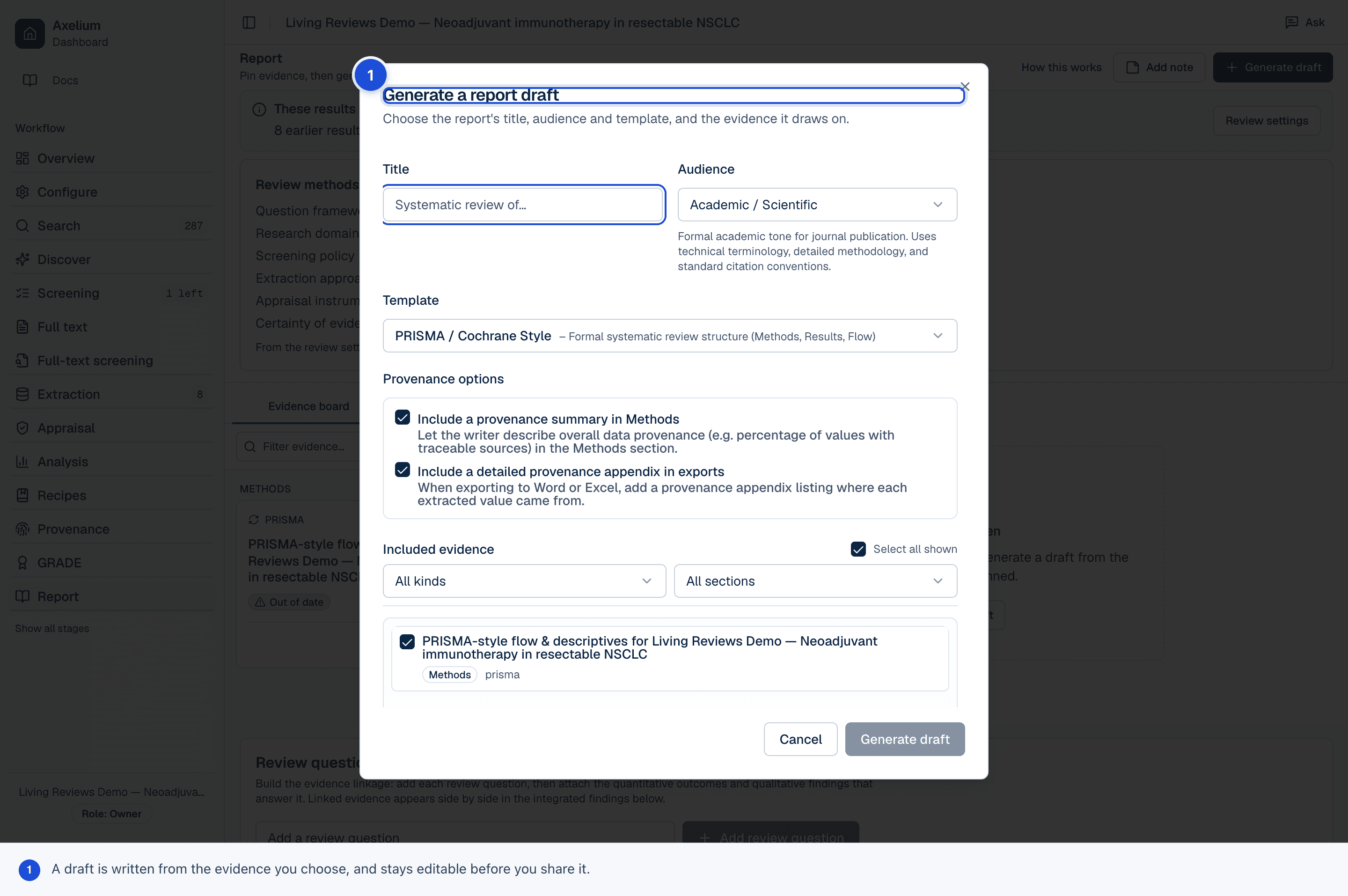
Use the Evidence board and Reports area to collect the plots, tables, decisions, and narrative notes that should support the final write-up. Choose the intended audience, generate a draft, then edit it like any scientific manuscript.
- Pin plots, tables, and important explanations before generating a draft.
- Check that the report reflects only reviewed evidence and approved decisions.
- Export to DOCX or XLSX for editing and downstream sharing.
- Use RevMan export for supported quantitative outcomes when handing off to Cochrane authoring tools.
Next: keep the review current
For living reviews, lock the protocol and search settings before enabling monitoring. New studies and evidence changes should flow back through screening, extraction, analysis, and reviewer approval rather than silently rewriting the review.
Read about living reviews