Part 3 · Administration
3.4Browser companion
The browser companion helps you send articles, PDFs, supplements, and citation metadata from pages you can legally access into the right Axelium review. It is most useful for institutional subscriptions, publisher pages, and studies that need manual confirmation.
When to use it
- An automatic full-text search could not retrieve a paper.
- You are logged in through an institution and can view the article in your browser.
- A supplement or data appendix is available on a publisher page.
- You want to capture metadata from a publisher page before uploading the PDF.
Basic workflow
- Install the companion and connect it from your Axelium account.
- Open the article, PDF, or supplement in your browser.
- Choose the target review and study from the companion panel.
- Review the detected title, DOI, PMID, publisher, and file type.
- Send the capture to Axelium and wait for the document status to become Parsed.
Saving the page you are on
On a well-known publisher site a capture button appears on the article itself. On any other journal page — a smaller publisher, or an article you reached through your library’s sign-in — click the companion icon and choose Save this page at the top of Reviews. The companion works out which of your reviews is waiting for that paper and saves it there, or tells you why it could not: the page is not a paper one of your reviews is waiting for, it has no PDF the companion could find, or it did not give access.
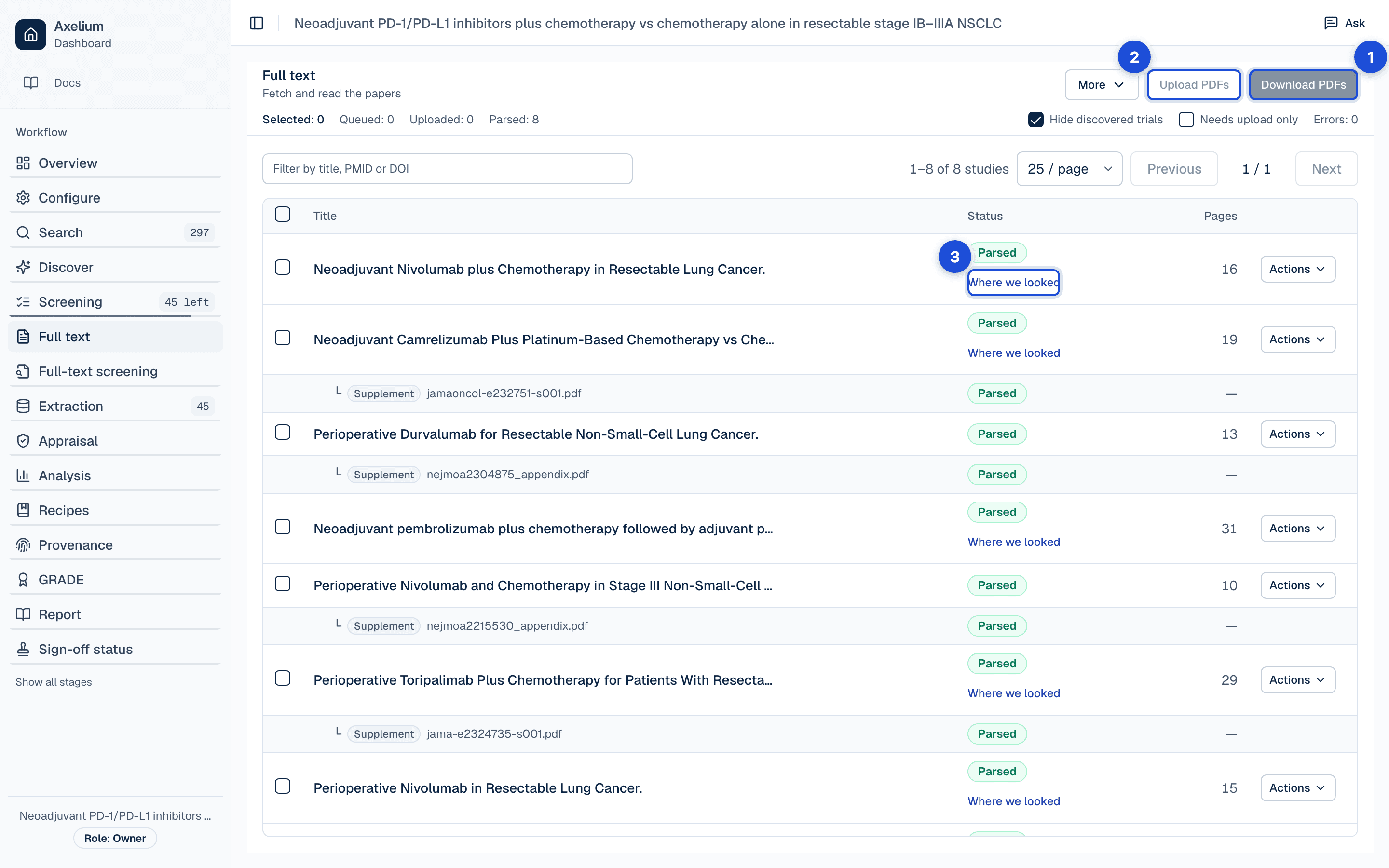
- 1. Try the automatic download first; it fetches most open-access papers.
- 2. Upload what you fetched yourself.
- 3. Where each paper was looked for, and what was found.
While you are signed in, the button appears on any paper one of your reviews still needs, even a review you have not opened in the companion.
Fetching the papers a review still needs
After full-text search, the papers behind your institution’s subscriptions are usually still missing. The companion can work through them for you.
- Open the companion and choose Assistant. It opens in a side panel that stays put while you keep working.
- Pick the review, then choose Start. The first time, your browser asks for permission to read journal pages; the companion reads a page only when one of your papers needs it.
- You are then shown exactly what will happen and asked to allow it for that review. Any other review asks again.
- The companion works through the remaining papers a few at a time, never more than one per journal. Papers already in your reference library are saved from there first; then it opens the journal pages you have access to.
- Choose Stop at any point; anything not yet fetched is simply left for next time.
Once a review is allowed, the run continues with the side panel closed, so you can get on with something else. The toolbar icon shows how many papers are still to go, and nothing is fetched twice.
Free copies Axelium could not download
Some papers are free to read, but the website holding them does not allow automatic downloads. When Axelium finds such a copy, the companion opens that copy first, then the paper’s DOI link. This also covers papers that have a PubMed ID but no DOI.
If the website asks for a person (a check that you are not a robot, or a publisher that does not allow automatic downloads from PubMed Central), the companion stops there for that paper. The Full text page lists it with a link to open; once it is open in your browser, save it with the companion as usual, or upload the PDF.
Starting on its own
You do not have to come back to the panel each time. Once a review is allowed, the companion notices when it has new papers to fetch and starts by itself, as long as Chrome is open and the companion is signed in: usually within a couple of minutes of a full-text run finishing, and within about twenty minutes when papers arrive some other way, such as a living search adding studies.
You can also allow a review from the Full text page. When full text finishes with papers still missing, the page offers to let the companion fetch them; agree there and the companion picks the review up without you opening it. Papers Axelium hasn’t tried to download yet are not offered: the page asks you to choose Download PDFs for those first, and the companion then picks up whatever it couldn’t reach. A run that stopped because a journal asked it to waits a few hours before starting that review again.
On a shared review, anyone who can add its full texts can allow this for their own companion — useful when a colleague’s library has access yours does not. Each person’s companion uses that person’s own access and keeps its own pace with each journal. Someone who can only view the review cannot allow it.
Working off campus through your library’s sign-in is supported: a journal reached that way is treated as the journal itself, and the PDF is fetched through the same sign-in.
You can withdraw that permission at any time — from the companion, or from Settings → Connected apps in Axelium, which works even if the device it is running on is switched off.
Where the companion’s own rules cannot find a PDF, it can ask an AI assistant to read that one journal page — a summary of its links and visible text, with addresses, access keys and long reference numbers stripped out — and say where the PDF is. It cannot type, sign in or buy anything, is used for a handful of papers per run at most, never twice for the same paper, and never on a journal that asked you to prove you are human.
Seeing what it fetched, and undoing it
Anything the companion fetches is recorded as having arrived automatically. On the Full text page of a review it has worked on, a line at the top says how many papers it has collected and whether any journal is currently paused; from there, See what it fetched opens the full list.
Each entry shows the paper, the journal site it came from, when it arrived, whose companion fetched it, and whether anything in your review has been built on it yet. You can remove any of them — one at a time or several at once.
Removing a paper is a decision: the companion will not fetch it again. If you do want it back, upload it yourself from the Full text page.
Paused journals are listed with the reason and when they resume. Nothing is wrong on your side when this happens — the companion waits and picks them up again by itself.
Troubleshooting
- If the target study is not listed, confirm you are in the correct review workspace.
- If a PDF is blocked, download it through your normal institutional access and use manual upload.
- If a supplement is not detected, save the file locally and upload it to the study from the Full text page.
- If a capture lands on the wrong study, remove it before extraction and upload it again to the correct record.
- If a run finishes immediately with nothing fetched, the review may have no remaining papers, or none of the journals involved have been allowed yet in companion settings.
- If Save this page says the page did not give access, sign in through your library, open the article again, and save it once more.