Part 2 · Oversight and governance
2.5Review settings and history
A review’s settings are the methodological decisions it runs under: the question framework and its criteria, how studies are screened, what is extracted, which appraisal instruments apply, how results are synthesised, and how certainty is rated. Every stage reads them, so changing one is a methods decision rather than a preference.
What the settings cover
Settings are grouped by the stage that reads them. The question framework decides which criteria a review has at all — a PICO review has an intervention and a comparator, a PEO review has an exposure and no comparator — and the rest of the review follows from that: the screening questions you are asked, the arms extraction looks for, the wording of the prompts, and which appraisal instruments are offered.
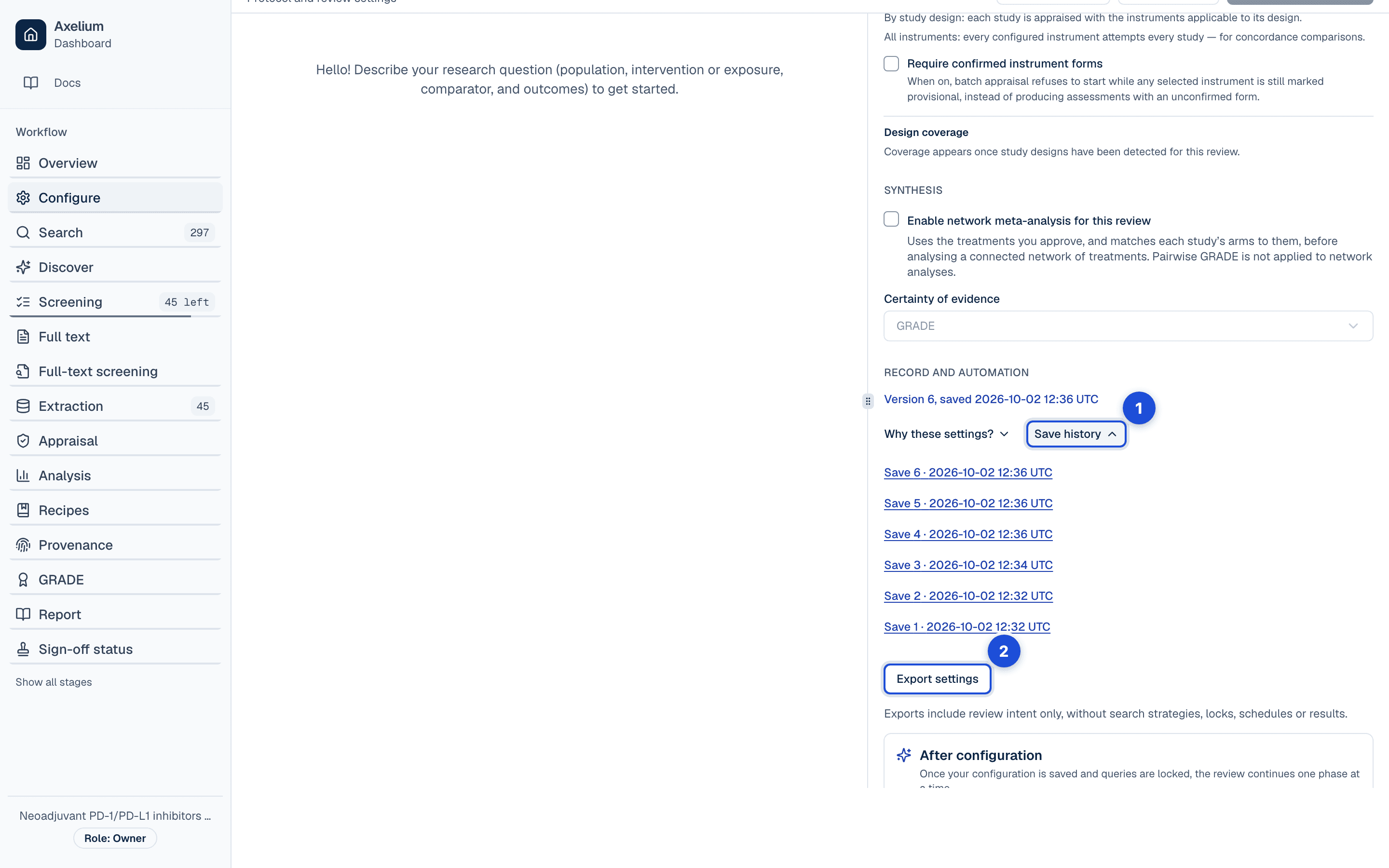
- 1. Every save, with what it changed, compared with the save before it or with the settings now; any earlier save can be restored.
- 2. The settings as a file, to start another review from.
- Search. The terms each concept contributes to a draft strategy. The strategy you commit is always yours: settings propose a draft and never rewrite a saved one. Switching the framework of a review whose search queries were built for the old one marks them out of date, so you are asked first; refine them on the Search page before the next search.
- Screening. Which criteria must be met to include a study, whether a comparator is required, the confidence threshold, whether the review is screened by one reviewer or two, and whether full-text decisions the evidence settles clearly are confirmed automatically.
- Extraction. Which outcomes are collected, and how a study’s arms are matched to the review’s.
- Appraisal. Which critical-appraisal instruments apply, and to which study designs.
- Synthesis and certainty. How results are combined, and which certainty method rates them.
Where a single primary outcome is needed, the first endpoint in the configured list is used. Updating an outcome keeps its existing extraction and reporting settings unless you change them.
On the Configure page the settings read in the order of the review: first what is still needed before the review can continue, then Question, Screening terms, Screening, Search, Outcomes, Extraction, Appraisal and Synthesis, and last the record — the version, why each setting is what it is, the save history, export and templates. Each outcome shows its type, its measure and a few of its synonyms, with everything else under Details.
Most settings save as soon as you change them. The review methods — the title, the question framework and research domain, the screening and synthesis questions, the screening policy and the AI’s verdict, the extraction approach, the appraisal instruments and the certainty model — are saved together: while one of them has changed, a bar at the foot of the settings reads Unsaved changes to review methods, with Save and Discard. If someone else saved the same settings meanwhile, the bar asks you to reload them before saving. The screening terms have their own Save. In the page header, Save and lock checks the settings first: anything missing or weak is listed with a fix you can apply or skip, then the settings are recorded for the report. Applied fixes change the settings, so the check looks again before it locks. A search plan it drafts is a basic one, drawn from your review question: build the strategy from it on the Search page before you search. You can also lock the settings as they are, or cancel and keep them saved but not locked. Continue to search saves what is still waiting and moves on.
Every save is a version
Saving settings creates a new version rather than overwriting the last one. History lists every save with what it changed, compared either with the settings before it or with the settings now, and you can restore any earlier save — which itself becomes a new version. Restoring a save brings back its search plan and search queries with the rest of the settings. When that would change the search queries, Restore asks first, and says whether it brings back that save's queries or clears them.
What happens to earlier results
Changing settings never deletes work. Results produced under earlier settings are kept, and the stage they belong to tells you they were produced under different settings so you can decide whether to re-run. That decision is yours: a changed screening threshold may matter a great deal, while a reworded outcome label may not. Building or refining the search queries changes the search settings but finds no records, so it is never reported as out of date itself; a search that ran before the queries changed is. Searching one source on its own brings only that source’s records up to date.
Pages that follow your settings
The workflow in the sidebar lists the stages your review actually runs. A qualitative review shows its coding and synthesis steps and no trial analysis; a review with no appraisal instrument or no certainty model has no step for it. One Appraisal step opens the instruments your review uses — risk of bias, a qualitative checklist, or both for a mixed-methods review — and one certainty step, named after your certainty model, opens its ratings. A mixed-methods review’s certainty step holds the trial and the qualitative ratings side by side. Links you already have to the individual pages keep working. Owners and administrators can show every stage from the sidebar.
Screening lists every element of your question framework, in the framework’s order and marked required or optional as it defines, and shows the evidence for each study element by element. SPIDER, PICo and SPICE are available to every review and are screened on their own elements; the qualitative starter begins on SPIDER, and its design elements add the qualitative study filter to the search plan. In a qualitative review, the synthesis questions you set are what extraction answers. The overview names your review’s framework and the element that carries its intervention, exposure or phenomenon of interest, and until a search strategy is built the search page starts from your framework’s own population and intervention, exposure or phenomenon questions.
When a stage’s earlier results ran under different settings, the notice on that page can re-run the stage with the current settings: screening, extraction and risk of bias start from the notice; on the search page it takes you to Run search, beside the queries a search will send; the qualitative checklist, synthesis and certainty tell you where to re-run or what to revisit. A re-run keeps every earlier result; screening re-runs the records still waiting or marked unsure, never a decision you made yourself.
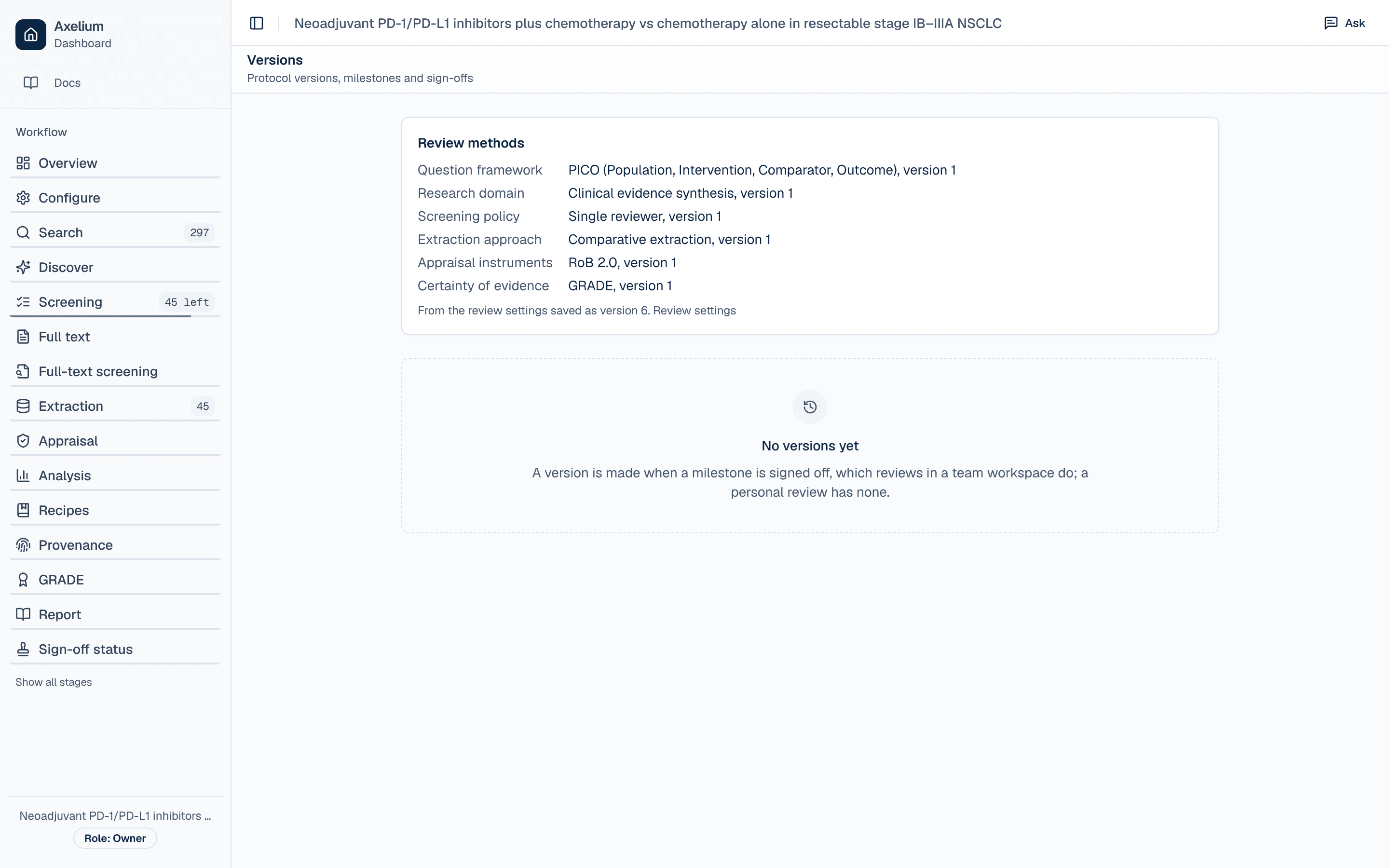
A generated report states the methods its analyses ran under — framework, screening policy, extraction approach, appraisal instruments and certainty model, each by name and version — and says so when the analyses it cites ran under different settings. The report, provenance and version history pages show the same summary.
When a paper cannot be found
Missing full texts has one setting, When a paper cannot be found. By default a paper that cannot be found is reported as not retrieved and is not assessed. You can allow a study to be assessed on its abstract once the paper cannot be found, with a second person confirming it, or plan the review on abstracts. It applies to papers closed from now on. Papers already closed keep how they were closed until someone reopens them. The setting is part of the protocol: it is read-only once the protocol is locked.
Automatic confirmation at full text
Two settings decide what happens to the AI reviewer’s full-text screening decisions: Confirm inclusions automatically and Confirm exclusions automatically, in the full-text screening settings (below). On the Configure page they are under Full-text decisions in the Screening section: its chip says what the full-text screening page’s chip says and opens the same settings. Both are on by default in single-reviewer review. When one is on, a decision of that kind that the passages in the paper settle clearly is confirmed without waiting — once a separate check agrees that those passages answer each deciding criterion’s question: an inclusion goes on to extraction, and an exclusion removes the study from the review, recorded with its reason and marked as automatic, so a reviewer can find it and reverse it. A decision the check does not confirm, and every other decision, waits for a person, who sees why.
The settings depend on the review mode. In dual review two reviewers decide independently and a person always makes the decision: the chip reads “Reviewers decide”, and the settings say why automatic confirmation does not apply. Switching the review mode later keeps what you chose, so it applies again if you return to single-reviewer review. Like any setting, it is saved as a version, and generated reports state how many decisions were confirmed automatically.
Full-text screening settings
On the full-text screening page, the chip beside Screen full texts sums up how the AI reviewer screens (for example “Evidence: 2 passages · Auto-confirm on”; with one kind only it reads “Auto-confirm inclusions” or “Auto-confirm exclusions”) and opens its settings:
- Evidence needed to settle a criterion — how many separate passages of a paper must agree before a criterion counts as met or not met: 1 (lenient: more is decided for you, but one sentence can settle a criterion), 2 (the standard) or 3 (strict: more waits for you, and each paper is read further, which takes longer and costs more). An exact quotation counts as one passage, an approximate one as half.
- Evidence needed to rule a study out, under Advanced — a separate amount of evidence before a criterion counts against a study, usually more, since excluding a study wrongly is the costlier mistake. By default it is the same as above; asking for less is allowed, with a warning.
- Confirm inclusions automatically and Confirm exclusions automatically — the switch described above, one for each kind of decision, so you can, for example, let inclusions through but have a person confirm every exclusion. Both are disabled in dual review.
- Criteria that must be met, under Advanced — every criterion the review states, ticked where full-text screening requires it. The criteria of the review’s framework are always asked; a question the review keeps outside its framework (a comparison, a setting or a study design, say) is asked only when ticked. When some are not used at full text, a note lists them with Use at full text. A criterion newly required at full text does not exclude a study on its own: a study it rules out waits for you.
- What counts as the comparison, under Advanced, shown when the review has a comparison — the groups the study itself compares, or also an adjusted estimate from a statistical model. It applies once you have chosen the criteria that must be met; the comparison then counts only where the study states a result for the groups compared.
- What is checked before a decision is confirmed for you, under Advanced — Standard: the check reads the quotations for each criterion that must be met. Thorough: before an inclusion is confirmed, the check also asks whether any quotation shows the population does not fit, and whether the study has no comparison group, is a case report or is a review; if so, the inclusion waits for you, as does any decision settled without a quotation from the study.
- Studies whose comparison looks incidental at the abstract stage, under Advanced, shown when the review requires the study itself to compare the groups — exclude them at the abstract stage (the standard), or send them to full text as unsure. Once that is saved, Reopen studies already excluded for this reason counts them first, asks why, reopens them, and screens them again; the reason is kept in each study’s history. A person’s decisions are never reopened, and a review whose screening is locked cannot be reopened. It needs permission to settle screening disagreements.
- Evidence for plain facts, under Advanced —The same for every criterion (the standard), or Plain facts settle on one passage: the population and the publication checks (original research that reports results) count as met on one passage, while every other criterion needs the evidence chosen above. Ruling a study out always takes the evidence chosen above.
- Propose excluding a study whose full text never mentions the intervention or exposure, under Advanced, off by default — when the whole full text has been read and none of the words for a required intervention or exposure criterion appears in it, text and tables alike, the study is proposed for exclusion. A full text under about 1,500 words, a criterion with fewer than three words to look for, a trial registry record, or a full text in a language other than the review’s is never proposed this way, and such an exclusion always waits for you. The review’s language is the language its criteria are written in, or else the language your search is limited to, or else English.
- Take one more look at passages that mention a criterion still open, under Advanced, off by default — when a required criterion is still open once the reading of the full text has ended, the passages that use its words are read again together. It adds at most one reading per study.
The words full-text screening looks for come from each criterion’s question and from the review’s other words for it. The configuration assistant can also record words studies use in another sense (for example, a word that names your intervention but, in some studies, a different treatment), drafted from your protocol; it asks before saving them, and full-text screening takes them into account when it reads and checks a full text. While they cannot be edited in the review settings, ask the assistant to list, change or remove them. They cannot be changed once the review’s protocol is locked.
When a decision waits for you because of these settings, the study’s criteria panel says why in a line beginning Held for you: for example, it was ruled out on a criterion newly required at full text, a passage suggests the study may not qualify (the passage is shown), the full text never mentions the intervention or exposure, or the intervention or exposure counted as met on quotations that use none of its words. Configure also notes criteria that full-text screening does not use, and suggests a framework with a comparison when the review question compares groups but its framework has none.
Changes are kept as a draft until you save them, and a Custom mark with Reset to default shows when a setting differs from the default. Before saving, Estimate from the last run shows where the studies the AI screened, and no one has decided yet, would land with the new setting if screened again, from what the last run found. Studies already excluded automatically, and studies screened under earlier eligibility criteria, are left out. It is an estimate: a stricter setting can need parts of a paper the last run did not read, and those studies are counted as reading further. It is not shown in dual review, where the AI is one of the two reviewers.
The settings apply to studies screened from now on. Studies already screened keep their results until they are screened again, and decisions made by people are never changed. A screening run keeps the settings it started with, and the page does not save new ones until it finishes. Whoever may change the review’s protocol may change them, not once the protocol is locked; everyone else sees them read-only, with the reason. Each full-text decision records the evidence it needed, and the Methods paragraph of a generated report states it, including when it changed part-way through screening. Copying a review’s settings to a new review carries these too.
To see which decisions confirmed automatically the new settings would change, use Re-check automatic decisions on the full-text screening page once you have saved them. It lists the records that would change, with reasons, and changes none until a reviewer accepts it; the report says when the settings were saved again after it started.
Copying settings between reviews
A new review can start from a template, from another review, or from a settings file exported from one. What is copied is review intent only: the framework, the criteria, the outcomes and the methodological choices. Search strategies, locks, schedules and results are never copied — a copied review starts its own work.
If a setting cannot be included in the file, the export refuses and tells you which one, so a copied review is never silently different. Starting a new review directly from an existing one copies the same way, so it can stop for the same reason — open that review and settle the setting first, or start from a template instead.
Your team’s review methods (preview)
A team has a library of review methods: the built-in question frameworks, screening policies, extraction approaches, appraisal instruments, certainty models and templates, and the team’s own. Open it from the team’s page under Review methods. Every member can browse it and see which of the team’s reviews use each method; team admins and lead reviewers can add to it.
To adapt a built-in method, fork it and give it a name. The fork starts as a draft that you can edit, and becomes available to the team’s reviews when you publish it. A published method never changes, so the reviews that chose it keep exactly what they chose; to change it, start a new version. A method you no longer want offered can be retired — reviews already using it keep it. If the built-in method a fork came from gains a newer version, the library says so, and you can fork the new one.
From a team review’s settings, Save as a team template keeps its methods and its questions, not its search, studies or results; saving again under the same name adds a new version. The team’s templates are offered when you create a review in that team’s workspace, and the team’s own methods appear in the review settings beside the built-in ones, marked as your team’s. A team question framework is offered only for reviews that are ready to use it.
Suggested wordings
While screening, the screener may propose alternative wordings for your population, intervention or comparator — other ways the same idea appears in the literature. These are used to match studies during screening and to map study arms during extraction. They are not part of your search strategy and answering one does not change it.
You can keep a suggestion or remove it. A removed one is not proposed again, and the Configure page lists what you have removed so you can allow one back if you change your mind.