Part 1 · The review, stage by stage
1.10Reports and exports
How a report draft is generated from the evidence you pinned, how it is edited and versioned, what the PRISMA counts mean and how the PRISMA flow opens every one of them, what leaves the review as a file, and the two marks every Word report carries.
What it does
The report stage turns a review into a document. You pin the plots, tables, notes and decisions that should support the report to the Evidence board; the writer drafts a report from those pins, the included studies’ characteristics, the PRISMA counts, the review’s recorded methods and its record of appraisal, certainty, retrieval and sign-off, in the audience and template you choose. The draft is a starting point: you edit it in the editor, every save keeps the earlier version, and a lead reviewer can lock the manuscript so nothing changes afterwards. The writer never invents a study or a number that is not in the pinned evidence or the review’s record, and it never approves anything: the sign-off record at the end of every Word report says what people approved and what still needed a person at the moment the report was generated. Compare the draft against the protocol, the included studies and the finalised evidence before sharing it.
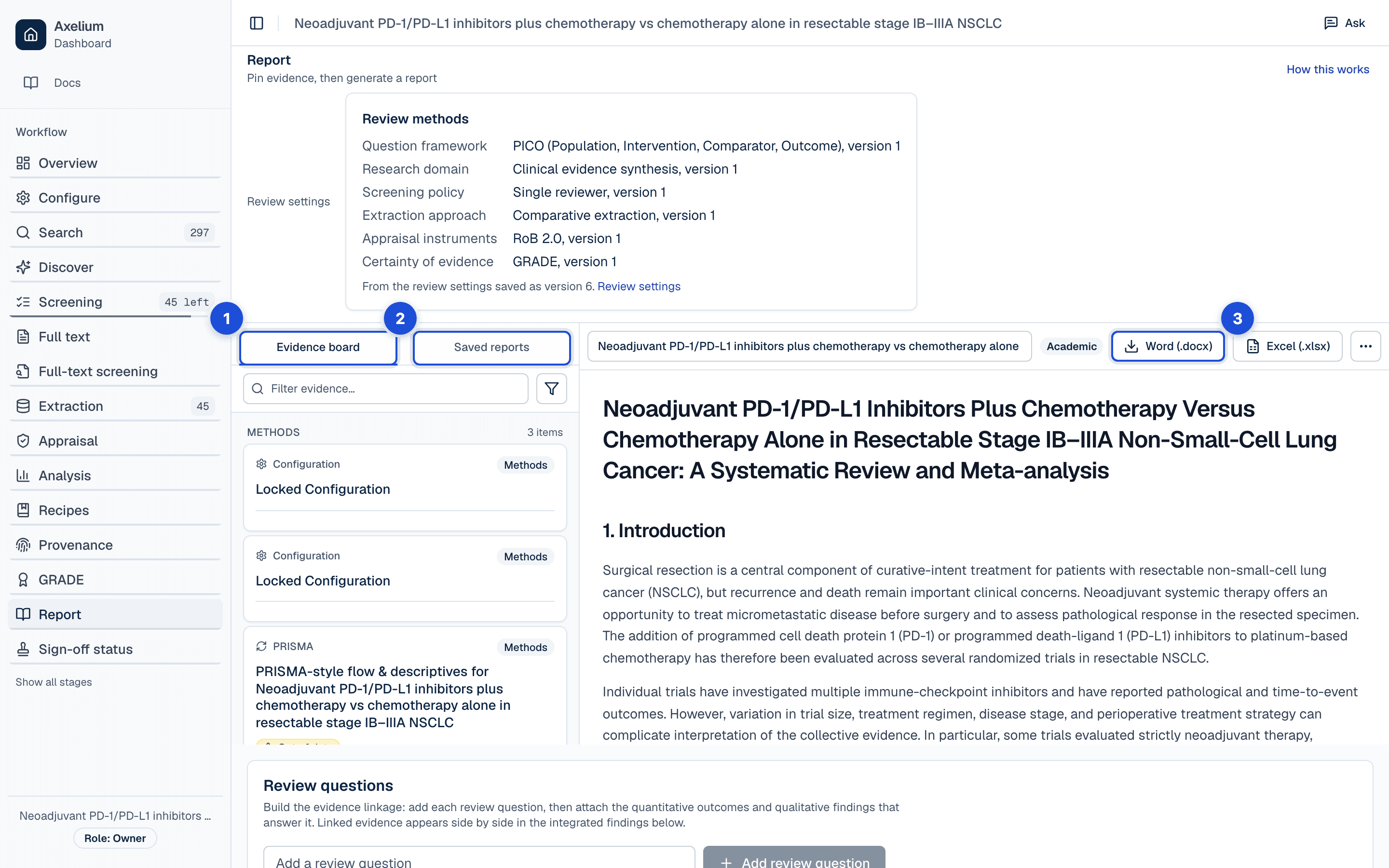
- 1. What you pinned from Analysis, with the settings snapshots and the PRISMA summary.
- 2. Every generated draft, with its creation date.
- 3. Word and Excel of the open report.
What you do
Generate a draft
Pin before you generate. The Report page opens on Evidence and reports, with the Evidence board on one tab and Saved reports on the other. The board holds what you pinned from the Analysis page — plots, tables and messages — together with the review’s settings snapshots, its PRISMA summary and, in a qualitative review, its themes, coding frame and summary of qualitative findings. Whoever pinned an item can relabel or remove it; a lead reviewer or admin can manage every pin. A pin made before screening, extraction or risk of bias changed is marked as such, so you can re-pin it. Unpinned results do not reach the report.
Generate a report draft asks for a title, an audience (academic, clinical, regulatory, health technology assessment, payer, internal, patient and public, or one you describe), a template (PRISMA and Cochrane style, journal IMRaD or executive summary; an ecology review offers PRISMA-EcoEvo, ROSES and systematic map), two provenance options — a provenance summary in Methods, and a provenance appendix in the exports — and the pins to include, all of them by default. The template sets the draft’s sections and their order (an executive summary is Executive Summary, Key Findings and Recommendations; a systematic map has Evidence Base Description and Knowledge Gaps and Clusters after Introduction and Methods), and the reference list is added at the end when the review includes studies. Only a lead reviewer or an admin can generate; other members and viewers read what is generated. The audience shapes the whole narrative, so choose it first. The Quickstart walks through one generation in its report step.

Edit, save and restore versions
Open a saved report to read it; Editor opens it for editing. Saved reports show their creation date, and read-only visitors open the newest saved draft automatically. In a team review, lead reviewers and admins edit saved reports, regenerate them, restore earlier versions and delete reports; other members read them. Each save first keeps the report as it was, as a numbered version with who saved it and when; Restore brings an earlier version back and keeps the current text as a version too, so nothing is lost by restoring. Deleting a report deletes it with its earlier versions and cannot be undone. Once the manuscript is locked (Approvals, locks and sign-off), saved reports can no longer be changed, regenerated, restored or deleted.
A saved draft can be regenerated from the pins it was written from; its current text is first kept as a numbered version. Regenerate, beside Save, opens the generate dialog filled in from the draft: its title, audience, template (the first, when none has the draft’s sections, and the dialog says so), provenance options and the pinned items it was written from, ticked. A pinned item no longer on the Evidence board is left out, and the dialog says how many are gone; you can tick other items, and with none ticked the draft is not regenerated. If you have edits you have not saved, Regenerate first asks you to save them, since only the saved text is kept as a version. While the new draft is written the report cannot be edited on this page, and one draft is regenerated at a time; when it is ready it replaces the text, and the page names the version that holds the earlier one. A draft that takes too long or fails leaves the report as it was.
The PRISMA counts
The PRISMA summary is computed from the review’s own records when the Analysis page is first opened and pinned to the Evidence board under Methods; a lead reviewer or admin can have it computed again. Screening counts de-duplicated records; retrieval and eligibility count reports, so a second report of a study you already screened is counted openly rather than lost as a duplicate. The boxes are:
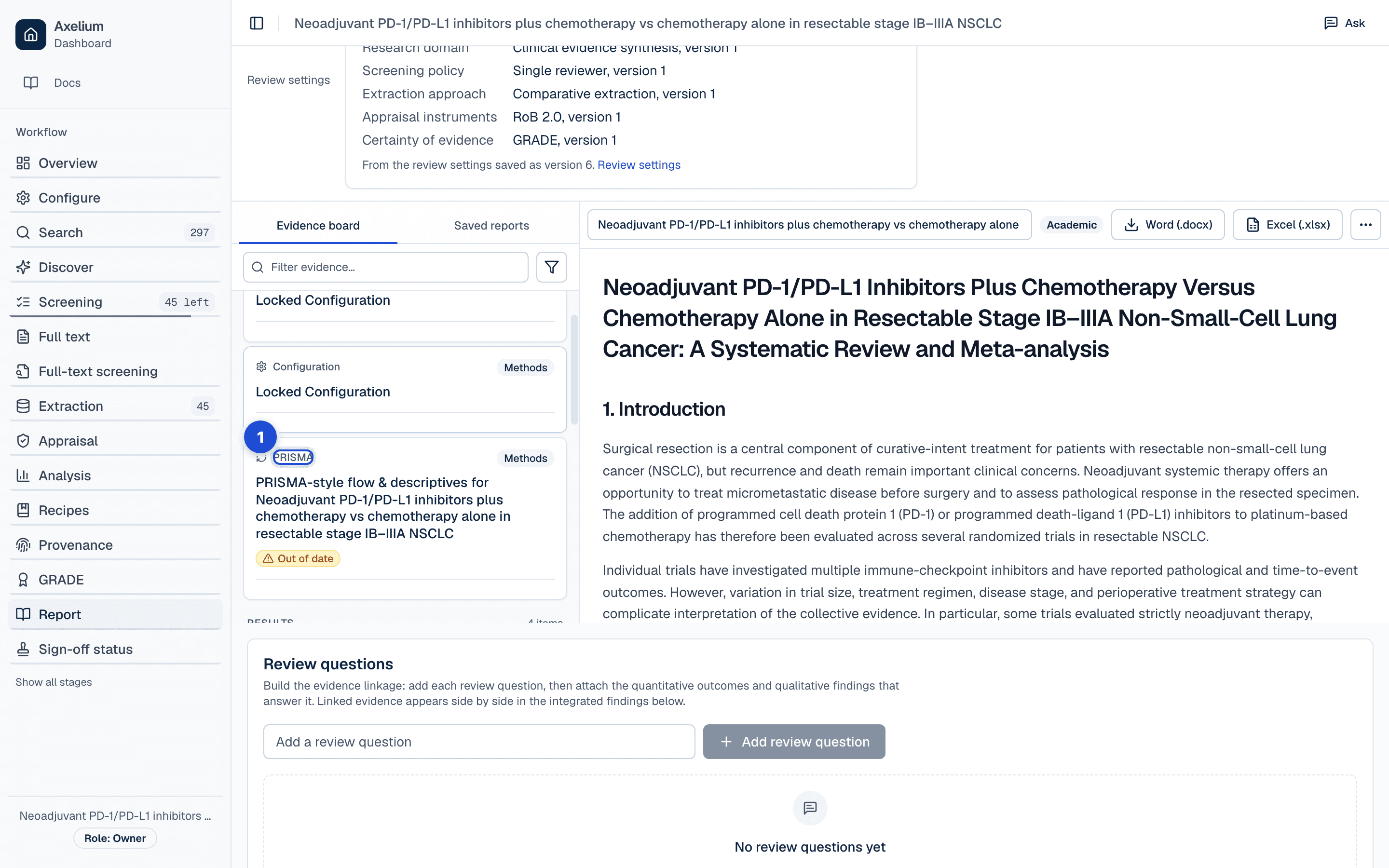
- 1. The PRISMA summary, computed from the review’s own records and pinned under Methods.
- Records identified — every find, by each database and register, and by other methods (citation searching, a reference list imported from a file): a record two databases found counts under each, and the extra counts are removed before screening as “same record found in more than one database”.
- Duplicates removed — records linked to another record of the same study.
- Records screened — de-duplicated records with a title-and-abstract decision.
- Records excluded — excluded at title and abstract; a record still marked unsure is counted apart, not as excluded.
- Reports sought for retrieval — every report taken past title and abstract, additional reports of a screened study included.
- Reports not retrieved — reports a person closed without their full text, with those assessed on the abstract counted beneath. A report with no document and no closure is still being retrieved, and is neither.
- Reports assessed for eligibility — reports with a full-text decision.
- Reports excluded, with reasons — excluded at full text, counted by the reason recorded.
- Studies included — distinct studies with an included report.
Before a summary is saved the boxes are checked against each other. A flow that does not reconcile is refused and nothing is stored, so the report never carries an unbalanced diagram’s numbers. Before generating, resolve unsure records to zero and check that the included count matches your extraction count.
The PRISMA flow
PRISMA flow in the sidebar, after Sign-off status, draws the review’s PRISMA 2020 flow diagram: identification, screening, retrieval, eligibility and inclusion, with the databases and registers in one column and other methods in a second column when the review has records from them. Most numbers open the records they count; a total that adds up the lines under it does not. Open one and the figure folds to one column beside the box’s records: each report with its decision, who made it and when, the reason and the note, and the sources that found it, grouped by reason, by who decided (“AI only” where no person has checked the AI’s decision), by database and by search. Each record opens “Where it came from”: how it was found, its screening, its full text, its full-text screening and its extraction, each step linked to its page; in dual review it shows the other reviewer’s vote only once you have both decided, as screening does. A box’s records export as CSV; people’s names are in the file only if you tick the option. Overview’s stage strip (“Show the flow”), the Sign-off status page and the report’s PRISMA pin all link here. The Table view gives the same counts as text with what each counts.
While screening is under way, what is not decided yet is drawn dashed and named (not screened yet, being retrieved, awaiting assessment), and the title-and-abstract decisions only the AI has made are counted apart. A review searched before the app kept each database’s finds shows one identification box and says what is not known. A qualitative review’s figure names the synthesis, and after inclusion shows appraisal, coding, synthesis and CERQual instead of extraction, analyses and the report.
As of: the flow at a sign-off, an update or a report
The flow is kept as it stood at each sign-off, at the end of each living-review update, each time it becomes the report’s figure, and with an export when you tick “Keep this moment”. As of opens any of these moments with the records that were in each box then; each record shows its decision as it stands today. As of also compares two moments: the boxes that changed are outlined with the difference beside each number, and the notice says how many records came in since. “Update the figure in the report” makes the flow as it is now the report’s figure. If the live counts ever fail to add up, the page says why and shows the most recent of the last five kept flows that does.
Exporting the flow
Export gives SVG, PNG at twice the size and a one-page landscape PDF of the figure; a Word file with the figure, its counts table and its caption; the PRISMA 2020 flow-diagram template filled with the review’s counts, as CSV for the PRISMA group’s own tool; and the counts as JSON. A PNG too large to draw at twice the size is drawn at its own. Options chooses the moment; the colours of an SVG or a PNG (light, dark, for print: a PDF and a Word file are in print colours); whether to add the steps after inclusion (left out by default: they are not part of the PRISMA 2020 figure); and the caption, which names the moment and PRISMA 2020 and says “in progress” while anything is still to be decided (a flow in progress keeps its caption). The app adds no person’s name to any of these files, and an imported reference list is named for what it is, not by its file’s name; the review’s title appears as you typed it. Exporting needs the review permission and is not offered on the demo; a guest exports only where the organisation allows it.
Figure 1 in the report
“Add to report” (for whoever may change the review’s settings) pins the flow as it is now to the Evidence board under Methods, replacing the previous PRISMA pin. The pin says which moment it shows and how many records the review has found since. The Word report carries the newest PRISMA pin at the time you download as Figure 1, with its counts table; the Excel workbook carries its counts as a PRISMA sheet. Above the draft, the Report page’s Study selection panel (closed until you open it) holds the paragraph written from the same counts, each number a link to its box. When the PRISMA pin is among the evidence you generate from, the writer is given that paragraph and asked to quote it; check the draft’s numbers against Figure 1.
What the writer draws on
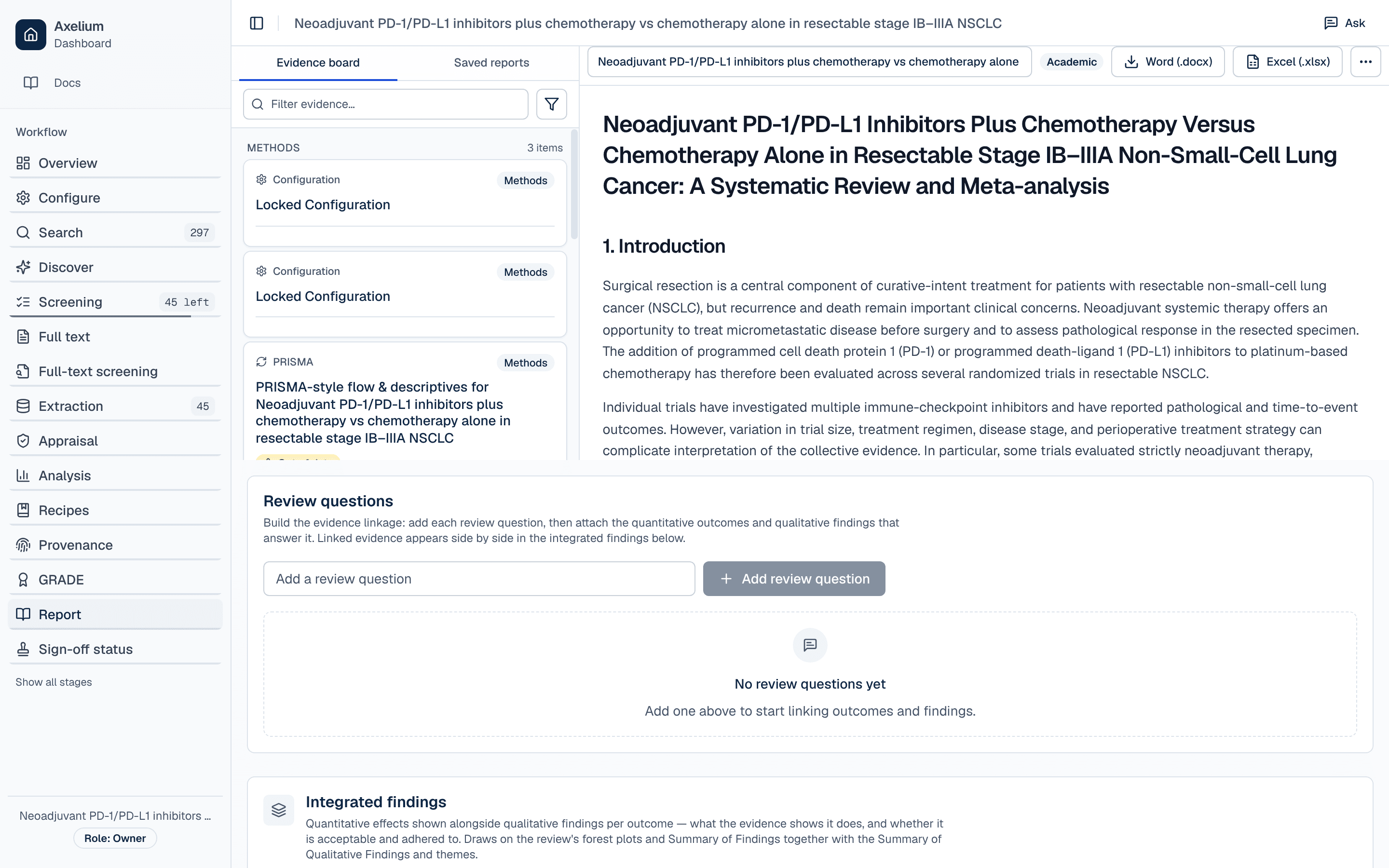
The writer is given the pins you selected — each plot or table with its data and its note, each message (a very long one shortened), each settings snapshot and the PRISMA summary — the characteristics of the included studies (citation, design, country, the intervention and comparator each study names, arm sizes, outcomes and their timepoints), which also become Table 1 and the numbered references, and, when the Analysis page produced them, the pinned outputs’ data tables. Where the review requires validated values, only validated values reach the analysis the pins were made from, so the numbers the writer sees are the numbers a person approved (see Extraction and traceability). Two paragraphs of Methods are written from recorded data rather than drafted: the review’s methods by name and version, from the settings each pinned analysis ran under, and the full-text screening paragraph, from the stage’s own records. A provenance summary — the share of extracted values with a traceable source — appears in Methods only when you asked for it in the dialog.
The writer is also shown the review’s own record, whether or not you pinned any of it. Risk of bias: one line per assessed included study with each result’s judgement, from the validated assessments and the published ones you imported (marked as such), then how many studies were assessed, which still await a reviewer’s validation and which were not assessed. Certainty: the GRADE ratings, one line per outcome and timepoint, each marked finalised or provisional, with what each was downgraded or upgraded for and why; a finalised rating that a newer rating, not yet finalised, differs from says so. An ecology review’s draft is given no ratings: clinical certainty ratings do not apply to it. The reports that could not be retrieved: how many, how many of them were assessed on their abstract, and the most common reasons given for closing them, in the words given. The validation and sign-off record: the milestones and, for each approval point, how many were approved by a person, how many automatically and how many still needed a person when the draft was written. When you ask for a provenance summary, the writer also sees, for each included study, how many of its values are traced to a quote and, of those values, how many have every quote found in the paper or confirmed by a reviewer, how many have a quote that is unconfirmed or disputed by a reviewer, and how many are not yet checked. These count values, not quotes, so they need not match the Quotes row of the sign-off record, which counts each quoted sentence once. The record’s people — who assessed, rated, approved or closed something — are not named; a reason or a basis someone wrote reaches the writer in their words, without e-mail addresses. The writer is asked to weigh the risk of bias in Results and Discussion, to report a provisional rating as provisional, and never to claim more validation than the record shows; what the review has not recorded is not given, and the draft is written without it.
The draft cites studies by their numbers in the reference list. Each study row of a pinned plot or table reaches the writer with its number, where the row can be matched to an included study, and a pinned result that lists its studies names the references it rests on, so a pooled result is cited by the studies it pools.
The boundary: a sentence of the report is not traced to the statement it rests on.
Exports
What leaves the review as a file, and where each file is made. Word and Excel are of one saved report; the others are of the review. A guest of an organisation exports only where the organisation lets guests export.
| Export | What it holds | Of | Where |
|---|---|---|---|
| Word (.docx) | The open report: title, the “Generated via Axelium” line, the body, the pinned PRISMA flow as Figure 1 with its counts, Table 1 (characteristics of included studies, with each study’s intervention and comparator), pinned tables and plots, risk-of-bias tables, the provenance appendix when asked for, the reports not retrieved, and the validation and sign-off record. | One saved report | Report › Export |
| Excel (.xlsx) | The data behind the open report: a Characteristics sheet (with each study’s intervention and comparator), a PRISMA sheet of the pinned flow’s counts, one sheet per pinned table, and a provenance sheet when asked for. | One saved report | Report › Export |
| PRISMA flow (SVG, PNG, PDF, Word, PRISMA 2020 template CSV, JSON) | The PRISMA 2020 flow diagram as a picture, a one-page PDF or a Word file with its counts table and caption; the PRISMA group’s flow-diagram template filled with the counts; or the counts as JSON. | The flow now, or a kept moment of it | PRISMA flow › Export |
| A box’s records (CSV) | The records in one box of the PRISMA flow, as filtered: each with its decision, when, the reason and the note, and where it came from; who decided only if you tick the option. | One box | PRISMA flow › a box › Export |
| RevMan 5 (.rm5) | Included and excluded studies with their reasons, and the quantitative outcomes the review holds; risk-of-bias fields are left empty for you to complete in RevMan. | The whole review | Search › Export |
| RIS (.ris) and BibTeX (.bib) | The citations of the included studies, for a reference manager. | Included studies | Search › Export |
| Settings file | The review’s settings — framework, criteria, outcomes and methodological choices — to start another review from. | The whole review | Settings |
| Sign-off record (CSV or NDJSON) | Every approval event of the review: what was approved, by whom or by what, when, and the reason given. | The whole review | Sign-off status › Export |
RevMan export is for Cochrane-style authoring: included and excluded studies, screening reasons and the supported quantitative outcomes. Studies excluded at full text are listed with their reason, marked “Full text:” followed by the reason. The risk-of-bias fields are written empty; complete them after import. A network meta-analysis cannot be written as one RevMan comparison and is refused; export each comparison from the network workspace instead. Where the review requires validated values, only validated outcomes are exported. More in RevMan and Cochrane handoff. The settings file and copying between reviews are described under Copying settings between reviews; the organisation archive, under Exporting, archiving, deleting.
The label and the sign-off record
Every Word report carries two marks. Under its title it says “Generated via Axelium” with the date it was downloaded. And it ends with a Validation and sign-off record: the milestones and each approval point under its stage, in the Sign-off status page’s own words, as they stood when the report was generated — for each point, how many were approved by a person, how many automatically, how many still need a person, and its status. The record is always included; a report you download names people as the page does. The event-by-event record stays in the sign-off export (Approvals, locks and sign-off).
Settings
The report follows the review’s settings rather than having settings of its own. The question framework, outcomes, synthesis type and the methods named in the settings decide which audiences and templates the dialog offers, what the Methods paragraphs say, and whether a RevMan export is possible. The choices made in the dialog — audience, template, the two provenance options and the pins — belong to that one report and are kept with it. See Pages that follow your settings.
What is recorded
| Record | Where you see it | Exported in |
|---|---|---|
| Each saved report: its title, who generated it and when, its audience, and which pins it was generated from | Report › Saved reports | Word; Excel |
| Each earlier version of a report, numbered, with who saved, restored or regenerated it and when | Report › Versions | — |
| Each pin on the Evidence board: what was pinned, by whom and when, its label and section, and whether the review changed since | Report › Evidence board | Word (plots and tables); Excel (tables) |
| Each PRISMA summary: the counts, that they reconciled, who computed it and when | Report › Evidence board (Methods) | The report’s Methods |
| The PRISMA flow at each sign-off, each living-review update, each report figure and each export kept: every box’s count and the records in it | PRISMA flow › As of | The flow’s files; Word (Figure 1 and its counts); Excel (its counts) |
| The “Generated via Axelium” line with the download date | The Word report | Word |
| The validation and sign-off record as of the report’s generation: milestones, and per point the counts approved by a person, automatically, and still needing a person | Sign-off status; the Word report’s last appendix | Word; sign-off CSV/NDJSON (every event) |
| The reports not retrieved, what was tried, who closed each and why | Full text; the Word report’s appendix | Word |
| The manuscript lock, who set it and when | Sign-off status | Sign-off CSV/NDJSON |
Limits
- There is no PRISMA checklist. A moment kept before the PRISMA flow page existed shows its counts but not the records in each box, and the flow cannot be reconstructed for a time it was not kept. A kept moment lists the records that were in each box then, with each record’s decision as it stands today.
- Who decided a record is read from what the review recorded: a decision that names no one says “Person not recorded”.
- The report has no summary-of-findings table of its own. The certainty page builds one; finalise the ratings there before you rely on it (Certainty).
- Regenerate writes the whole draft again; a single section cannot be regenerated on its own.
- A draft that takes longer than about four minutes to write is stopped: the Report page says so and suggests fewer pinned items or shorter pinned messages. Nothing is saved, and you can generate again.
- When everything selected is more than the writer can read at once, what it reads is shortened in this order: pinned messages first, then pinned plots and tables, then the provenance by study and the provenance summary, then the review’s record (the sign-off record, the reports not retrieved, the certainty ratings and the risk-of-bias judgements; a shortened block keeps any count or summary line it has), and for a very large review rows of the study table too. The reference list is always given whole.
- The Word export carries the PRISMA flow only when it is pinned, no forest plot that was not pinned, and no source paper; the sign-off record is a summary as of generation, not the event-by-event history.
- A table in the draft’s own text prints in the Word export as plain text rows, one row per line, its cells separated by bars and a line of dashes under the header row, not as a Word table. Table 1 and pinned tables are Word tables.
- The Excel export holds tables only: no narrative, no images and no sign-off record.
- RevMan export leaves the risk-of-bias fields empty and refuses a network meta-analysis.